Trade Copier Ultimate v7.40 Guide
Set up Telegram-to-MT5 execution, route providers through NTS Super Bridge, copy trades between local MT5 terminals, configure prop and risk controls, and diagnose the complete path from source message to broker response.
Quick Start Setup
This is the shortest reliable path for a new setup. Do the steps in order; most setup issues come from skipping WebRequest, leaving the EA disarmed, or selecting Telegram groups before the MT5 account appears in Bridge.
1. Install Bridge
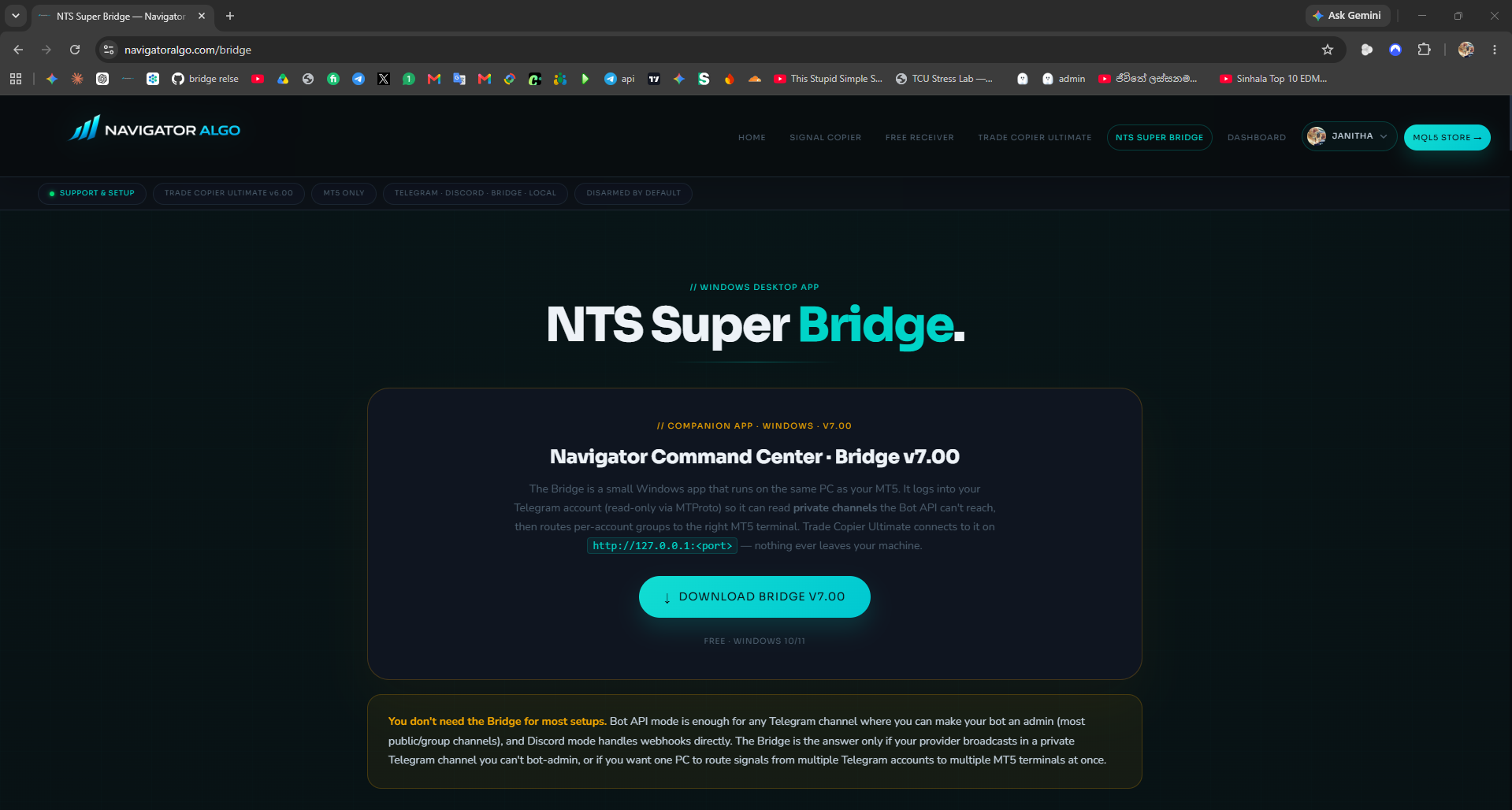
Download NTS Super Bridge, run the installer, and allow Windows SmartScreen if it appears.
2. Attach EA
Attach Trade Copier Ultimate to one MT5 chart, enable Algo Trading, and enable Bridge mode.
3. Log In Telegram
Use your own Telegram API ID and hash, fetch groups, assign groups, then start Bridge.
What Changed in v7.40
This release concentrates on preventing surprise execution. It strengthens identity, ownership, restart recovery, parser intent, and trade-management targeting rather than simply adding more buttons.
| Safety area | Current behavior | Why it matters |
|---|---|---|
| Local Master ownership | One TCU Master owns each copier file. Another Master remains blocked until the user clicks USE AS MAIN. | No silent failover to an unexpected account. |
| Master takeover baseline | Already-open positions on a newly selected Master are registered without surprise-copying during takeover. | Switching accounts cannot replay an old open book. |
| Restart and duplicate state | Persistent mapping restores linked trades across clean or abrupt restarts. Abrupt restart returns disarmed. | Prevents restart duplication and gives the user a deliberate recovery point. |
| Comment privacy | SAFETY TAG, CUSTOM+TAG, and OFF all retain file/state tracking. | Prop users can hide comments without losing copier identity. |
| Provider updates | Messages such as TP1 hit, Target reached, and Profit taken are treated as updates, not fresh entries. | Provider chatter cannot reopen the trade. |
| Reply commands | Close, partial, breakeven, modify, and cancel actions require enabled categories and proven reply context. | Trade-management text cannot target the wrong position casually. |
| Signal TP legs | TP1, TP2, and TP3 can be toggled independently with automatic volume rebalance. | Disabled targets no longer distort the requested total lot. |
| Product isolation | TCU uses TCU_TradeCopier.csv, separate from NTS Local Copier files. | The two copiers cannot accidentally share ownership or mappings. |
Choose the Right Setup Path
Beginners should start with Bridge Mode unless you intentionally use another source path. Bridge Mode is the full workflow for private Telegram groups, multi-account routing, Format Lab, Bridge Prop Safe, and diagnostics.
| Path | Use it when | Beginner setting | Important note |
|---|---|---|---|
| Bridge Mode | You copy Telegram groups/channels, private sources, multiple MT5 accounts, or prop accounts. | Recommended | Needs Bridge app running, EA Bridge enabled, and http://127.0.0.1 in WebRequest. |
| Telegram Bot API in EA | Your own bot is inside a bot-readable Telegram group and you do not need Bridge routing. | Optional | Needs https://api.telegram.org in WebRequest. Private channels usually need Bridge instead. |
| MT5-to-MT5 Copier tab | You intentionally copy open positions from one MT5 Master to one or more local MT5 Slaves. | Optional | This is independent from Bridge signal copying. Use one selected main Master and the TCU-specific copier file. |
1. Download and Install the Bridge
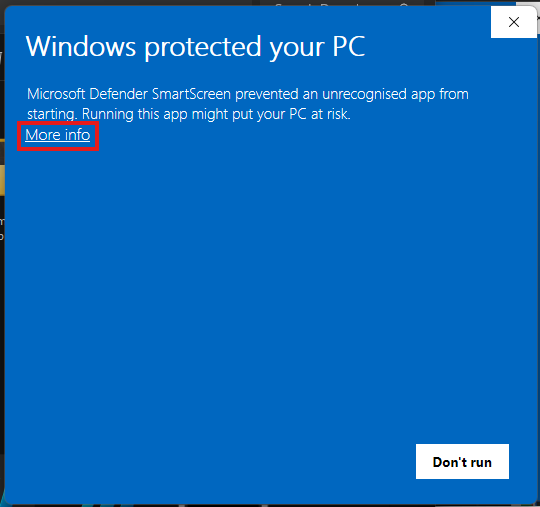
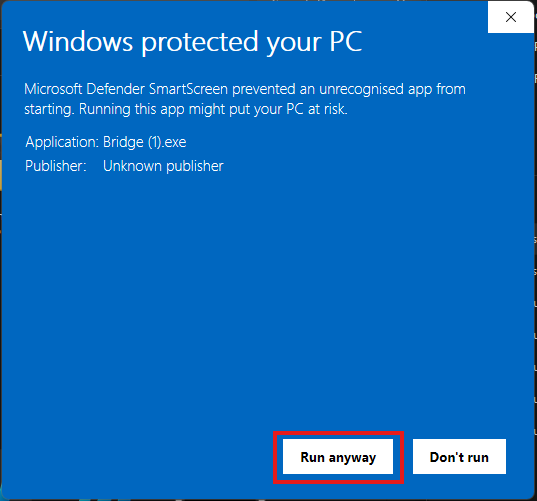
Download NTS Super Bridge, run the installer, and open the app. If Windows SmartScreen appears, click More info, then Run anyway.
2. Attach the EA and Allow WebRequest
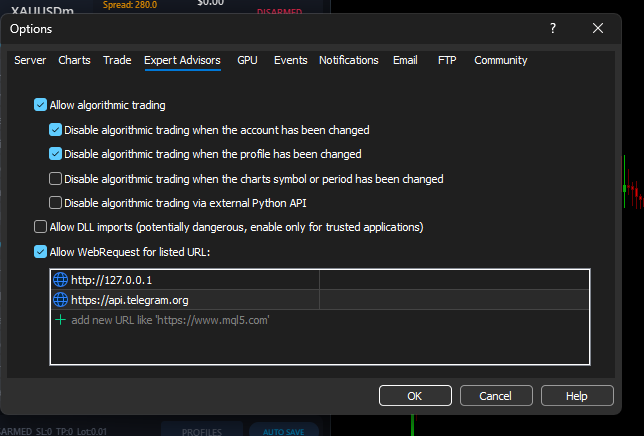
In MT5, drag Trade Copier Ultimate onto any chart. In the EA common settings, allow Algo Trading. Then open Tools -> Options -> Expert Advisors and add these URLs to WebRequest:
http://127.0.0.1
https://api.telegram.org
http://127.0.0.1 lets the EA poll the Bridge on your own computer. https://api.telegram.org is only needed if you also use direct Telegram Bot API mode from the EA.
3. Enable Bridge Mode in the EA
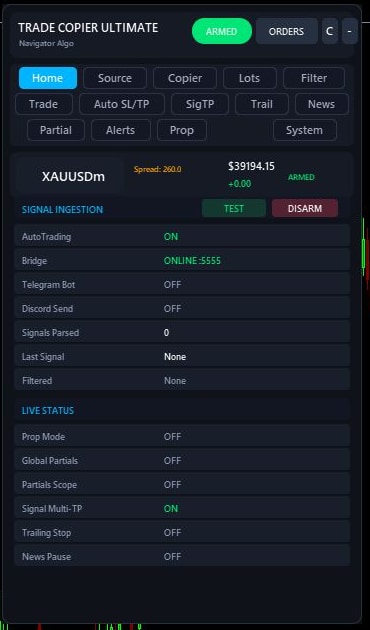
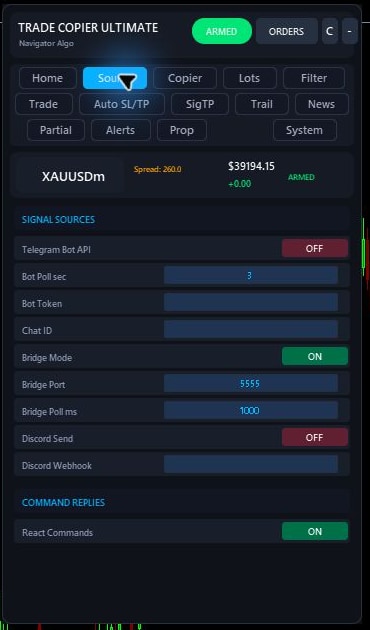
Open the EA Source tab. Turn Enable Bridge on and keep the port at 5555 unless you changed the port on both Bridge and EA. The Bridge and EA must use the same port.
4. Log In to Telegram in Bridge
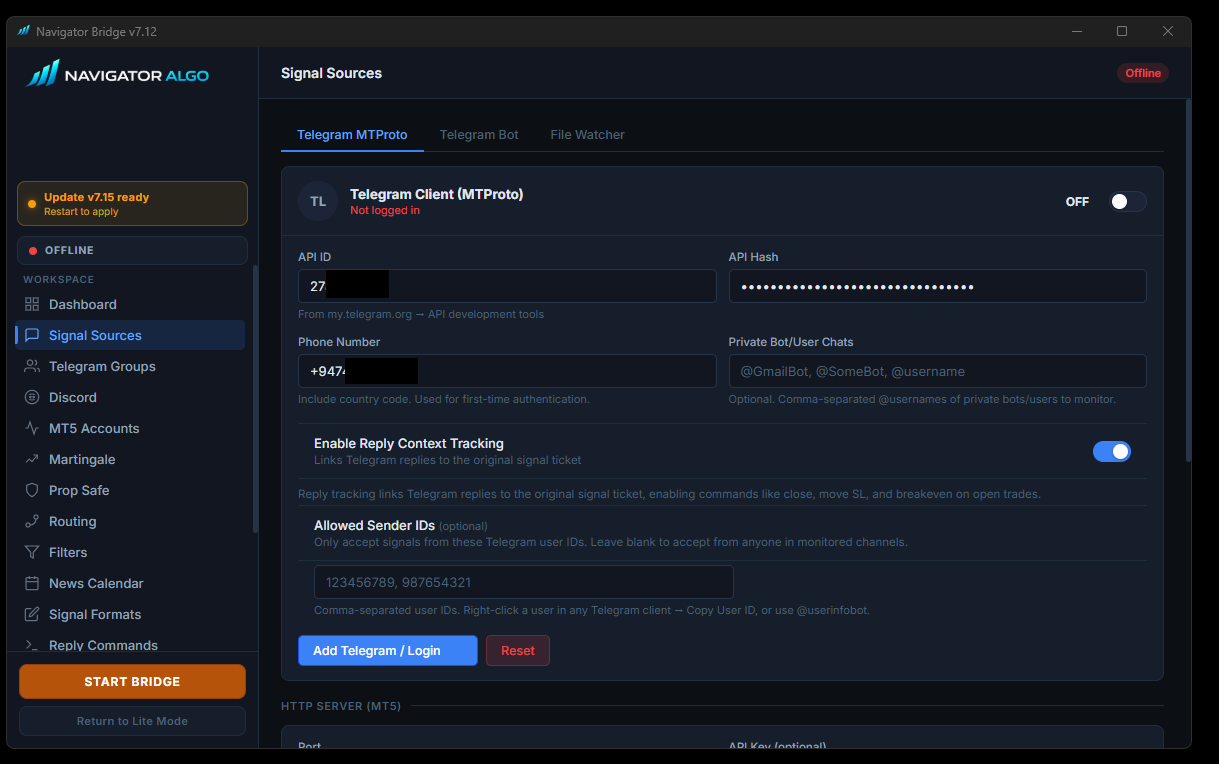
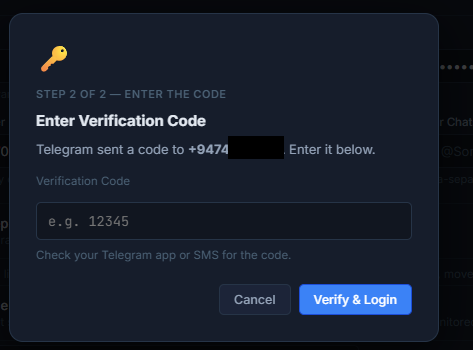
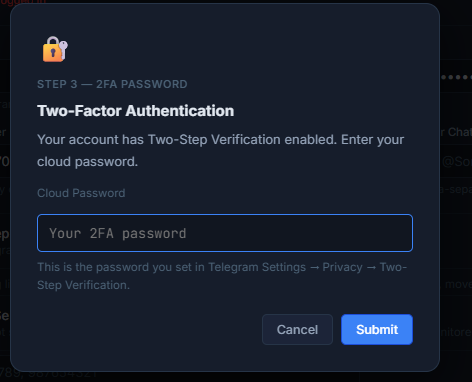
Open Signal Sources in Bridge, enter your phone number with country code, click Add Telegram / Login, enter the Telegram verification code, and enter your 2FA cloud password if Telegram asks for it.
5. Fetch Groups and Assign Them
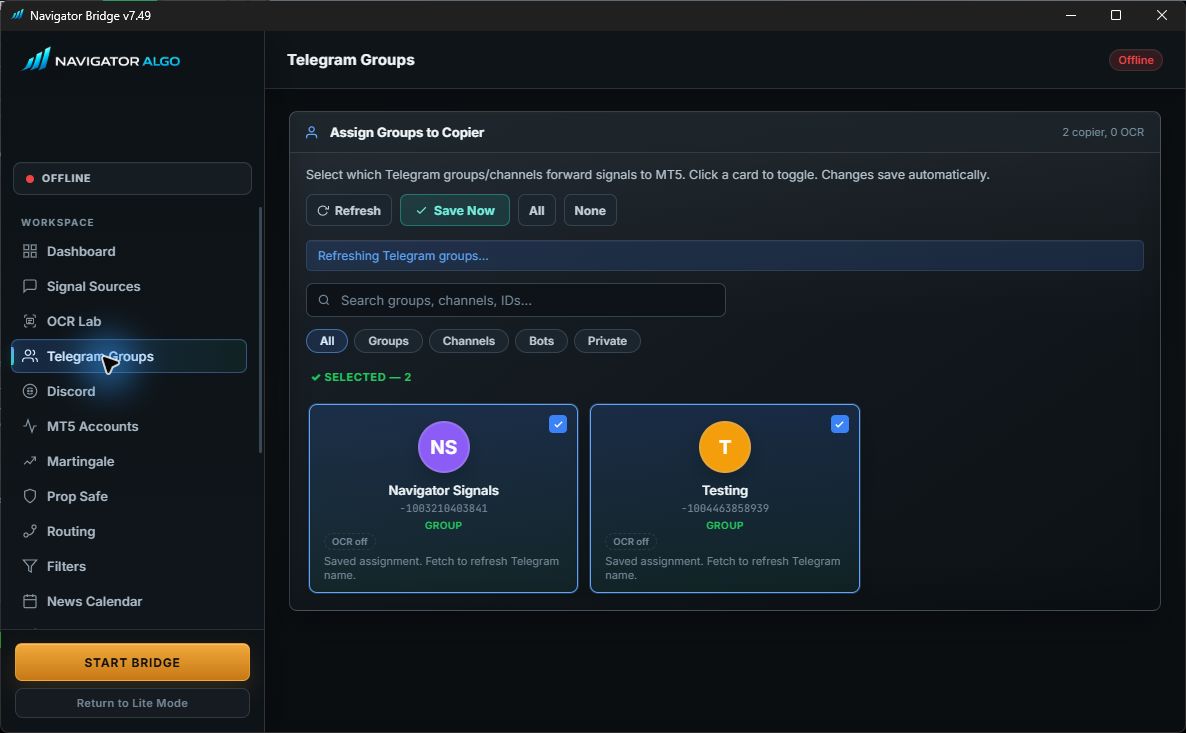
Open Telegram Groups, click Fetch from Telegram, then select the channels or groups that contain trading signals. If you use multiple MT5 accounts, assign each group to the account that should receive it.
6. Start Bridge and Confirm the MT5 Account Appears
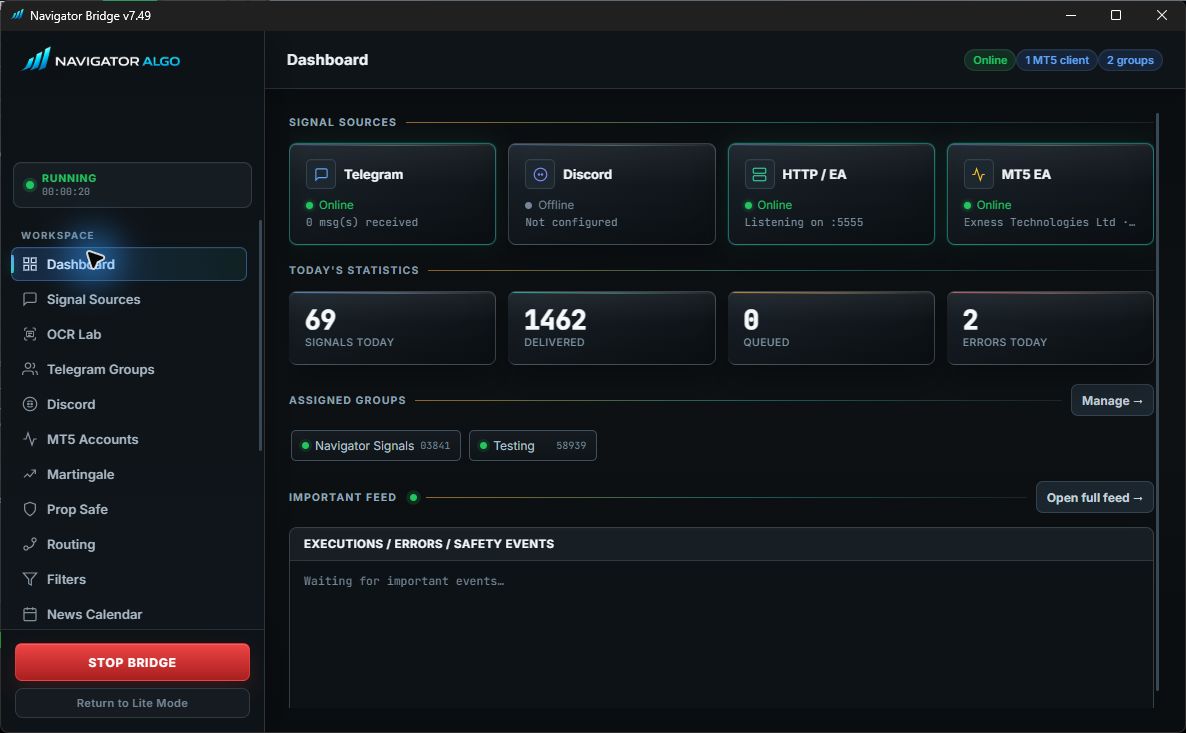
Click START BRIDGE. Then open the Bridge MT5 Accounts page. Your MT5 terminal should appear automatically after the EA sends its heartbeat. Bridge keeps recently seen accounts visible so routing does not disappear after a short idle period.
7. Set Lot Size and Risk Rules
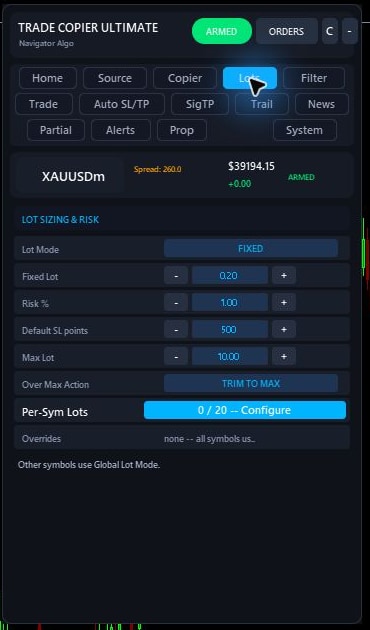
Open the EA Lots tab. For a clean first test, use a small fixed lot or per-symbol lots like XAUUSD=0.01,EURUSD=0.01. Confirm your broker accepts that minimum lot size for the symbol.
8. Arm the EA
The EA will not place trades while DISARMED. Click the EA ARM button. DISARMED mode is useful for testing parsing, but it intentionally blocks live execution.
EA Guide
Trade Copier Ultimate can receive Bridge signals, direct Telegram Bot API messages, local EA-to-EA copier trades, and manual command signals. For this guide, the main supported path is Bridge Mode: Bridge receives and normalizes the signal, then the EA polls Bridge locally and executes only after your EA safety rules allow it.
Bridge Mode
Best for private Telegram groups and per-account routing. Requires http://127.0.0.1 WebRequest.
Bot API Mode
Use only when your own Telegram bot is added to a group that permits bot reading.
EA Copier Tab
Leave OFF for Bridge signal copying. Use MASTER/SLAVE only for intentional local terminal-to-terminal copying.
Armed State
ARMED places accepted trades. DISARMED receives and logs signals but blocks execution.
Interactive EA Tabs
Click a tab to understand the important settings, beginner defaults, and common reasons a signal may be blocked.
Home Dashboard
This is the first screen to check before touching any advanced setting. It tells you whether the EA is armed, which source mode is active, and whether the last signal was accepted or blocked.
Beginner default
Use Bridge mode, keep the EA DISARMED while testing messages, then switch to ARMED only when routing, lots, and broker symbol are confirmed.
What to check
Screenshot the full Home tab when a trade does not open. The armed state, source state, symbol, spread, and last status usually reveal the first problem.
- DISARMED means the EA can receive signals but will intentionally block execution.
- Bridge offline usually means WebRequest, port, firewall, or Bridge status must be checked.
- If a signal appears on Home but no order opens, move next to Lots, Filters, Prop, and the MT5 Experts tab.
Source
Source decides where the EA listens for signals. For this guide, Bridge mode is the main path because it covers Telegram private groups, Discord/webhook routing, and multi-account Bridge control.
Bridge setup
Enable Bridge, use the same local port shown in Bridge, and add http://127.0.0.1 to MT5 WebRequest allowed URLs.
Direct bot mode
Only use Bot API mode if the Telegram bot is actually inside a bot-readable group. Private channels normally need Bridge instead.
- If Bridge says the account is not connected, check this tab before checking group routing.
- If MT5 shows WebRequest errors, confirm the exact URL is allowed in MT5 Options -> Expert Advisors.
- Do not enable multiple source paths for the same provider unless duplicate filtering is understood.
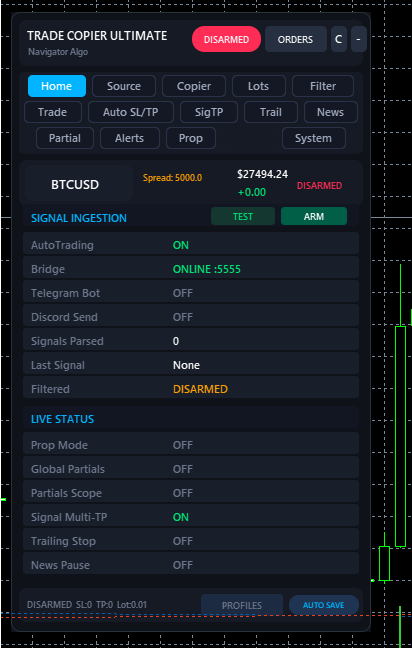
Copier
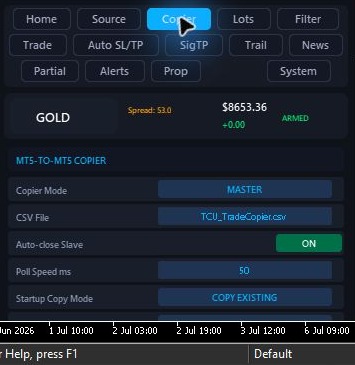
This tab is the independent MT5-to-MT5 copier built into Trade Copier Ultimate. It uses TCU_TradeCopier.csv and is deliberately isolated from the separate NTS Local Copier product.
One main Master
Only one TCU Master owns a copier file. A second Master is blocked until you deliberately choose USE AS MAIN.
One or more Slaves
Slaves can read the same file. Use NEW TRADES ONLY for the safest first test and a small fixed lot.
- There is no automatic master failover. This prevents an unexpected account from taking control.
- Changing main Master baselines its already-open trades; later trades copy normally.
- Tracking remains file/state based when comments are OFF, so comment privacy does not disable safe linkage.
- The Master publishes all open account positions, including manual and other-EA positions. Pending orders are not mirrored.
Lots and Risk Sizing
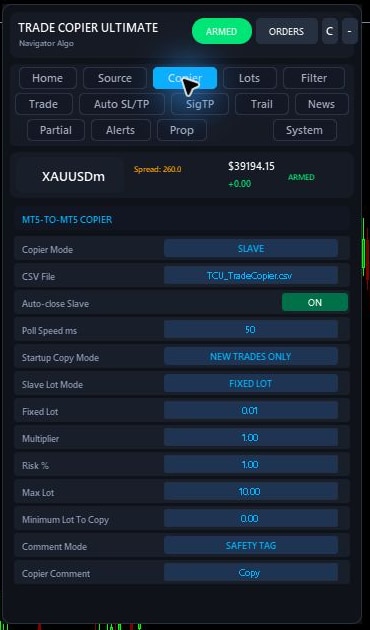
Lots controls how big each copied trade becomes. Start with a small fixed lot for testing, then move to risk percent or per-symbol overrides after the signal path is proven.
Beginner default
Use fixed lot 0.01 or your broker minimum until the first clean test trade opens and closes correctly.
Advanced sizing
Use per-symbol lots for XAUUSD, indices, crypto, or symbols where one standard lot has a very different value.
- Error 10014 usually means invalid volume. Check broker min lot, max lot, and lot step.
- If risk percent opens a surprising size, confirm SL exists and the symbol contract value is correct.
- For prop accounts, test the smallest lot first before allowing full risk automation.
Filters
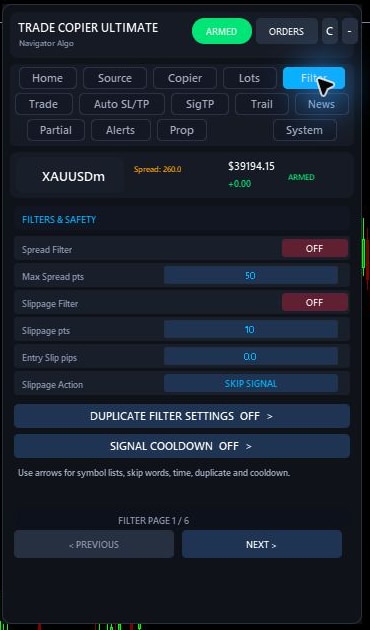
Filters are the safety gate between a received signal and a real order. They can block bad spreads, repeated signals, wrong symbols, bad keywords, and entries that arrive too fast.
Beginner default
Keep strict filters simple at first: spread limit, duplicate filter, and symbol mapping. Add keywords and cooldown after basic copying works.
Blocked signal clue
If Bridge received the message but MT5 did not trade, this tab is one of the first places to inspect.
- Spread filter blocks entries when broker spread is above your max value.
- Slippage settings protect market orders from filling too far away from expected price.
- Whitelist and blacklist decide which symbols are allowed or blocked.
- Duplicate and cooldown rules prevent the same signal from opening multiple times.
- Skip keywords are useful for messages like "analysis", "wait", "closed", or provider chat that should not trade.
Trade Execution
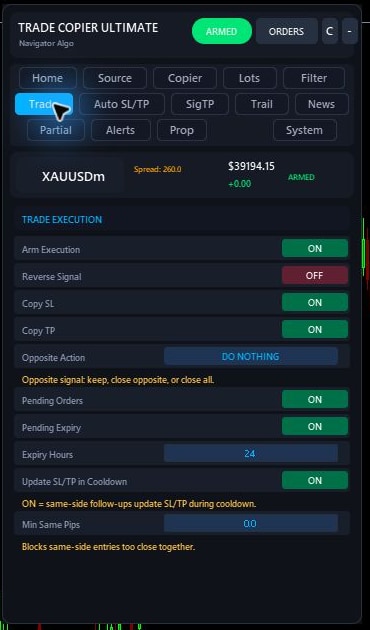
Trade settings decide what the EA does after a signal passes source, lot, and filter checks. This includes market orders, pending orders, close commands, opposite signals, and modification behavior.
Beginner default
Allow normal BUY/SELL first. Add pending orders, opposite-signal closing, and modification handling only after clean market signals work.
Broker symbols
Keep suffix blank unless your broker uses names like XAUUSDm and auto-detection does not map it correctly.
- Error 10015 often points to invalid pending order price or crossed price.
- Error 10016 usually means SL/TP is too close for broker StopLevel rules.
- If CLOSE or MODIFY messages do nothing, confirm those actions are enabled here and the magic number matches.
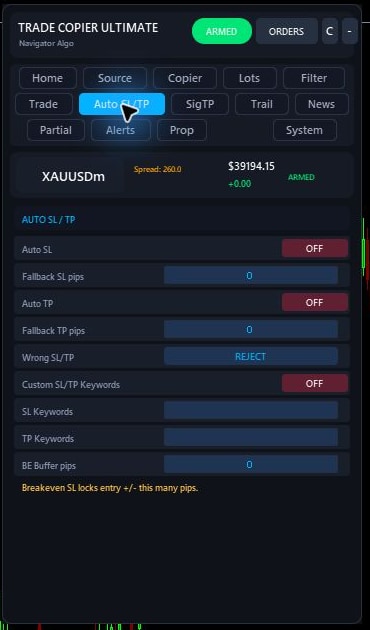
Auto SL/TP
Auto SL/TP adds fallback protection when a provider sends an entry without a stop loss or take profit. It is helpful, but it should be tested carefully because every broker has different stop-distance rules.
Beginner default
Leave fallback values off until basic signals are working. Then test on demo with one symbol before using real risk.
Prop accounts
Prop rules may require SL on every trade. Auto SL can help, but Prop tab rules may still reject missing original SL depending on your settings.
- If orders fail with invalid stops, increase the fallback distance or check broker StopLevel.
- Do not set fallback SL/TP so tight that normal spread instantly violates broker limits.
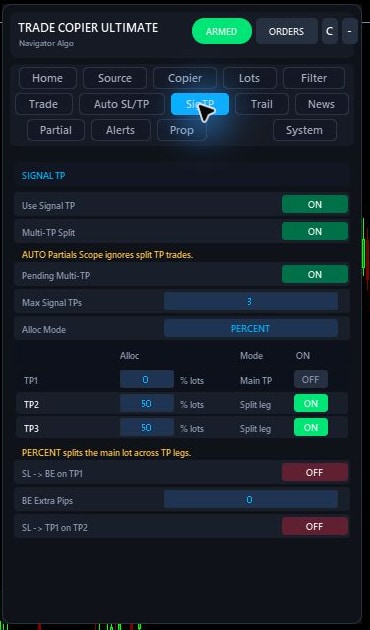
Signal TP Splitting
Signal TP reads the provider's TP1, TP2, and TP3 levels and can split one signal into multiple positions so each leg has its own target.
Leg controls
TP1, TP2, and TP3 can be enabled independently. Active legs are rebalanced to 40/30/30, 50/50, or 100% of the requested volume.
Current limit
Signal TP execution supports up to three targets. TP4+ text does not create additional EA legs.
- The configured total signal lot is distributed across enabled TP legs; it is not repeated for every leg.
- If only TP1 opens, confirm the original signal text has recognizable TP2 and TP3 labels.
- Partial close is a different feature; do not confuse it with Signal TP splitting.
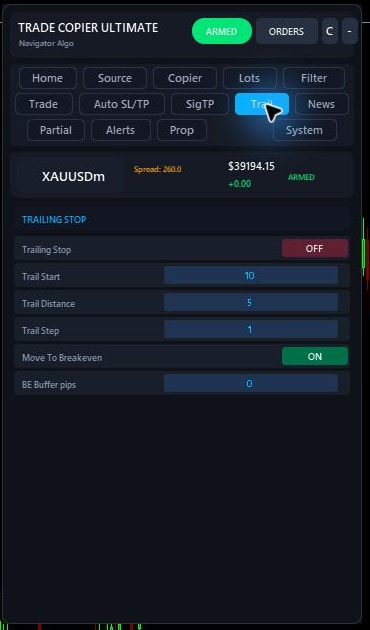
Trailing Stop
Trailing Stop moves SL after price reaches your configured profit threshold. It is a trade-management layer, not a signal-entry rule.
Beginner default
Leave trailing off until entries, SL, and TP behave correctly. Then test with one simple rule on demo.
Advanced use
Use trailing with breakeven and partial close only when you understand which feature moves SL first.
- Trailing manages positions opened with this EA's magic number.
- If SL does not move, confirm the trade reached the trigger distance and broker stop distance allows the new SL.
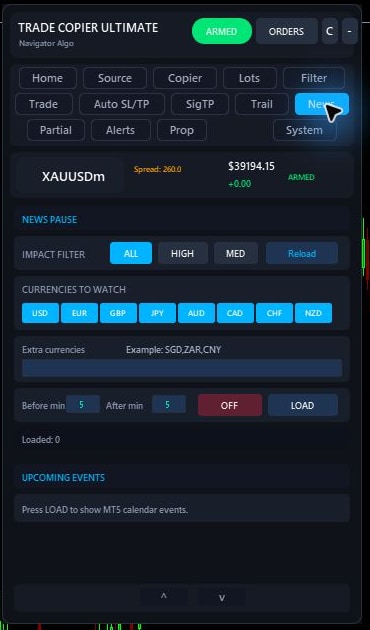
News Pause
News Pause blocks new entries near selected economic events. This protects accounts from sudden spread spikes and fast broker price movement.
Beginner default
Keep high-impact protection enabled if you trade forex or gold and do not want entries during major releases.
Blocked signal clue
If a valid signal skipped only during a time window, check News before assuming the parser failed.
- Match news currencies to traded symbols, for example USD news affects XAUUSD and major USD pairs.
- Bridge also has news controls; avoid accidentally stacking two different pause windows unless intended.
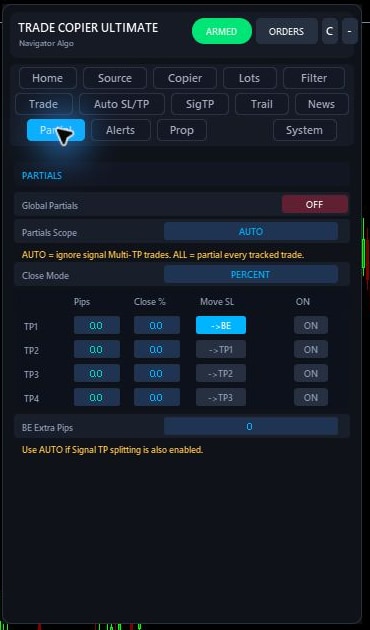
Partial Close
Partial Close manages one open trade after it is already running. It can close a percentage at profit milestones and optionally move SL after each milestone.
Beginner default
Keep partial close off until you know the copied trade opens at the right size and closes normally.
Different from SigTP
Signal TP opens separate TP legs from the start. Partial Close reduces one position later.
- If a partial close fails, confirm the remaining volume respects broker min lot and lot step.
- On very small accounts, a 0.01 lot trade often cannot be partially closed because the remainder would be too small.
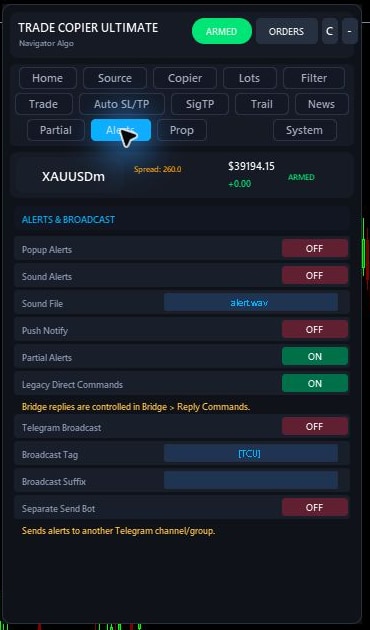
Alerts and Broadcast
Alerts help you see what the EA is doing without watching MT5 all day. Broadcast options can send copied trade events to your own Telegram or Discord destinations.
Beginner default
Use local popups or sound while testing. Add external broadcast only after execution is stable.
Privacy note
Do not paste bot tokens, webhook URLs, or private chat IDs into public support chats.
- If alerts fire but trades do not open, the signal reached the EA and was blocked later.
- If external alerts do not send, check the destination token/webhook and WebRequest permission.
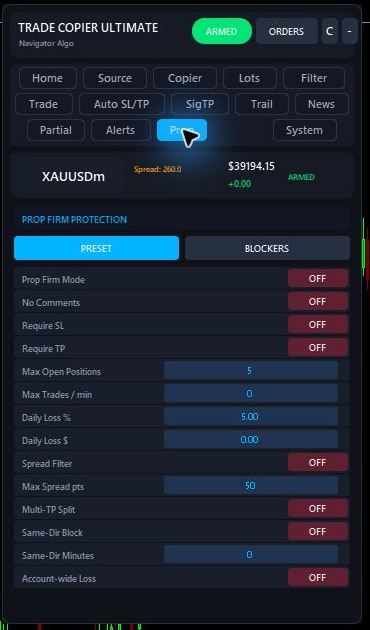
Prop Firm Protection
Prop Firm Protection adds hard rules for accounts that must respect daily drawdown, maximum open positions, required SL, and other challenge limits.
Beginner default
Only enable prop rules after you understand what each rule blocks. A safe rejection is still a rejection.
Blocked signal clue
If missing-SL signals do not open while Prop mode is active, the EA is likely doing exactly what it was told to do.
- Use Require SL for prop firms that invalidate trades without stops.
- Daily drawdown rules can stop new entries even when the signal format is valid.
- Max position limits can block extra TP legs, duplicate signals, or multiple symbols.
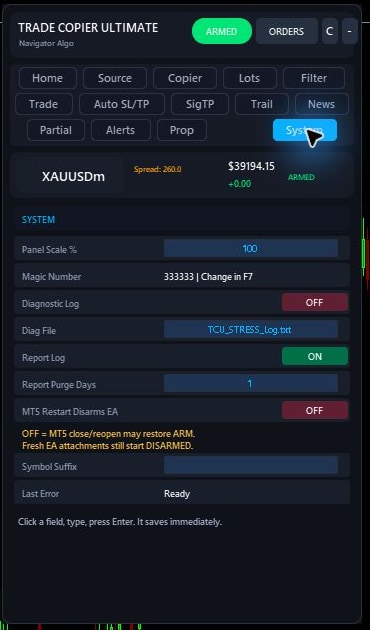
System
System contains identity, diagnostics, and maintenance settings. Check this tab when orders open with the wrong magic number, logs are missing, or broker symbol mapping needs confirmation.
Beginner default
Do not change magic number or diagnostic settings unless you are following a specific troubleshooting step. Defaults are enough for most single-EA setups.
Troubleshooting
Enable extra diagnostics only while reproducing an issue, then turn them back down so logs stay readable.
- Magic number separates this EA's trades from manual trades or other robots.
- Broker suffix should match the symbol actually tradable in Market Watch.
- When contacting support, include this tab plus Experts log lines around the failed signal time.
MT5-to-MT5 Copier: Safe Ownership Model
TCU's local copier is designed for a predictable topology: one selected main Master per copier file and one or more Slaves. A second Master never takes over silently. The user must select it deliberately after the current Master is no longer active.
Use the same TCU_TradeCopier.csv file on every participating TCU terminal.
Set one account to MASTER. Other Masters show the owner and remain blocked.
Set receiving terminals to SLAVE and start with NEW TRADES ONLY plus a small lot.
When changing Master, click USE AS MAIN. Existing trades on the new owner are baselined.
| Setting or event | What v7.40 does | Safe choice |
|---|---|---|
| NEW TRADES ONLY | Registers the Master's current snapshot without copying those existing positions. Only later positions are copied. | Recommended for first setup, restart checks, and Master changes. |
| COPY EXISTING | Copies the current Master's open positions on a fresh Slave startup. Restart state prevents already-linked trades from duplicating. | Use only when you intentionally want the current open book copied. |
| USE AS MAIN | Explicitly transfers file ownership to the account you selected. Existing positions on the newly selected Master are baselined during a takeover. | Close or disarm the old Master, wait for its lock to expire, then click once. |
| Comment OFF | Uses persistent state and file identity instead of relying on the visible trade comment. | Suitable for prop accounts that prohibit copier comments. |
| Restart | Restores role and linked trade state. An abrupt restart returns disarmed for safety; a clean restart may resume the prior armed state. | Confirm role, source, and copied count before re-arming. |
| Master scope | Publishes all open account positions, including manual trades and trades from other EAs. It does not mirror pending orders. | Use a dedicated Master account when you do not want unrelated positions copied. |
EA Settings Reference
These are the settings that most often explain why a signal copied, skipped, or opened with a different size. Beginners should keep the setup simple first, then enable advanced protections one by one after the basic Bridge path works.
| Area | Main settings | What they control | Common check |
|---|---|---|---|
| Source | Enable Bridge, Bridge Port, Bridge Poll | Connects the EA to local Bridge on port 5555. | If the account is missing in Bridge, check Bridge Mode, port match, and WebRequest. |
| Lots | Fixed Lot, Risk %, Per-Symbol Lots, Max Lot | Controls order volume for Bridge signals. | Error 10014 usually means broker lot min/max/step does not match the chosen size. |
| Filters | Duplicate, cooldown, whitelist, blacklist, spread, skip keywords | Blocks repeated, unsafe, unwanted, or high-spread signals. | If Signal History receives the signal but no trade opens, check Last Filtered and these filters. |
| Trade | Pending orders, Copy SL/TP, reverse, opposite action, symbol suffix | Controls how incoming signal instructions become orders or modifications. | Wrong suffix or disabled pending orders can make a valid Bridge signal skip or reject. |
| Auto SL/TP | Fallback SL/TP pips, skip missing SL/TP | Adds safety levels when a signal does not provide them. | Fallback levels must still respect broker stop distance or MT5 returns invalid stops. |
| Signal TP | Multi-TP, max targets, lot distribution, move SL after TP | Splits one signal into TP1, TP2, TP3 positions. | Only TP1-TP3 are executable signal targets in the current Bridge/EA flow. |
| Prop | SL required, daily loss, max positions, same-direction block | Stops trades that could violate funded account rules. | Missing SL, drawdown hit, or same-direction exposure can intentionally block a good-looking signal. |
| System | Magic Number, diagnostics, report log, panel mode | Controls identity, logs, and panel behavior. | Enable diagnostics only while reproducing an issue, then turn it off after you have the relevant log lines. |
Safe First Test
- Use a demo account or very small fixed lot.
- Keep only one simple Telegram signal group enabled.
- Send or wait for a clean test signal such as
BUY XAUUSD SL 2300 TP1 2310. - Check Bridge Signal History first, then MT5 Experts if the trade does not open.
- Only add more groups, risk features, or format profiles after the simple path works.
Bridge Guide
NTS Super Bridge receives signals from Telegram, Discord, files, or API, normalizes them, routes them to selected MT5 accounts, and exposes the queue that the EA polls locally.
Signal Sources
Telegram MTProto for private groups, Telegram Bot API for bot-readable groups, Discord, file watcher, and REST API.
Routing
Assign groups globally or per MT5 account. Each connected EA is detected by heartbeat.
Normalization
Symbol aliases, broker suffix detection, filters, duplicate blocking, and optional Format Profiles.
Daily Bridge Operating Checklist
Use this quick check before a live session, especially on VPS machines or prop accounts.
Open MT5
Log in to the broker and make sure Algo Trading is enabled.
Open Bridge
Confirm Bridge shows the current version and running state.
Check Accounts
MT5 account should appear online with broker suffix and routing visible.
Check Groups
Telegram source groups should be selected and assigned to the right account.
Check EA
EA panel should show Bridge online and ARMED only when you are ready.
Check Risk
Confirm lot mode, prop mode, daily loss, max positions, and spread rules.
Watch History
Use Signal History to verify received, parsed, routed, and delivered states.
Read Experts
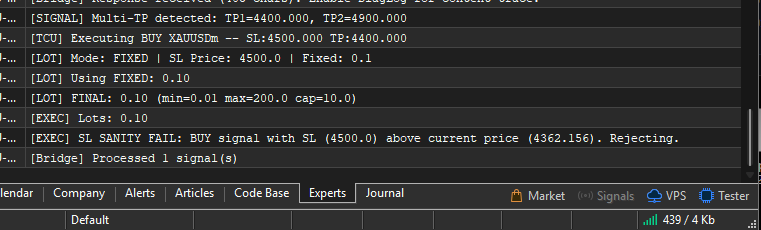
If no trade opens, MT5 Experts/Journal gives the broker-side rejection reason.
Current Bridge Control Center
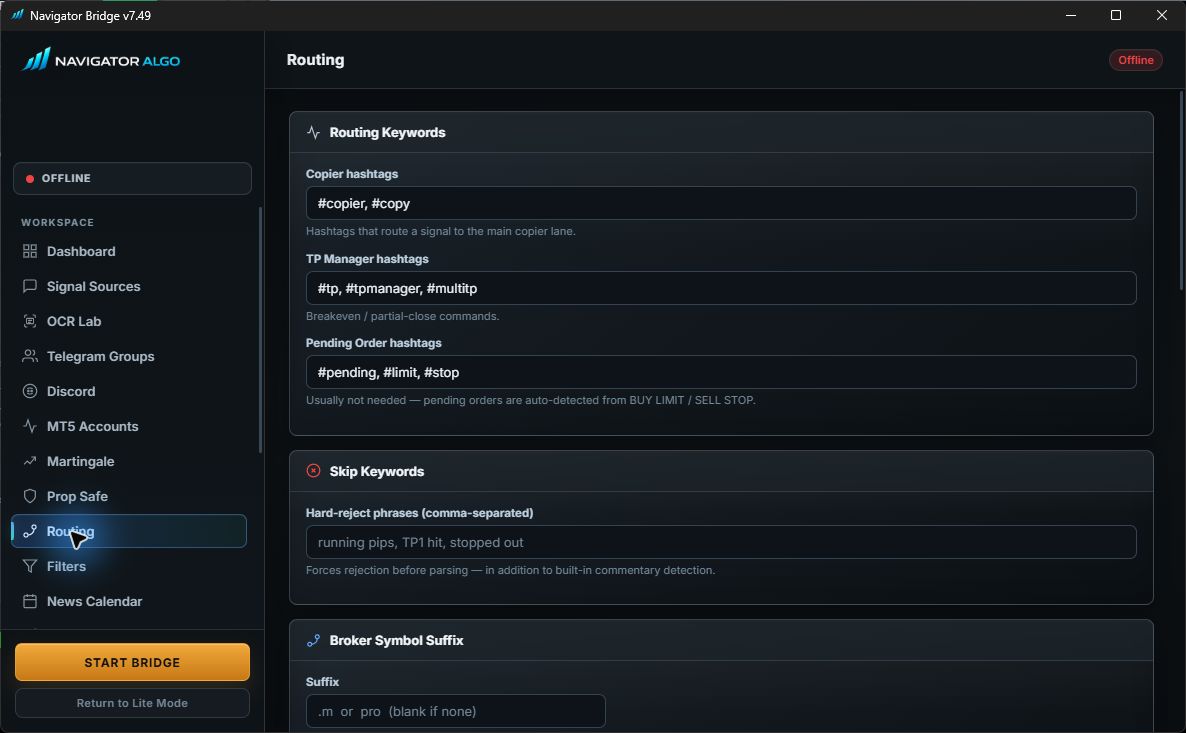
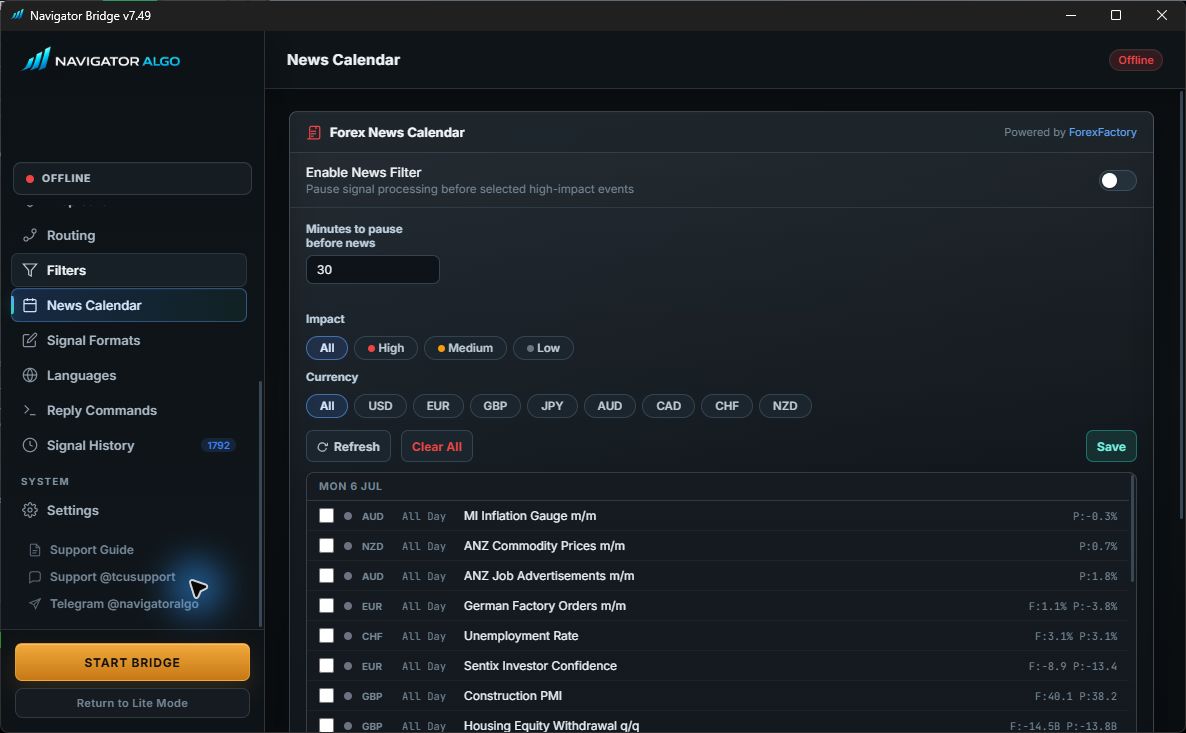
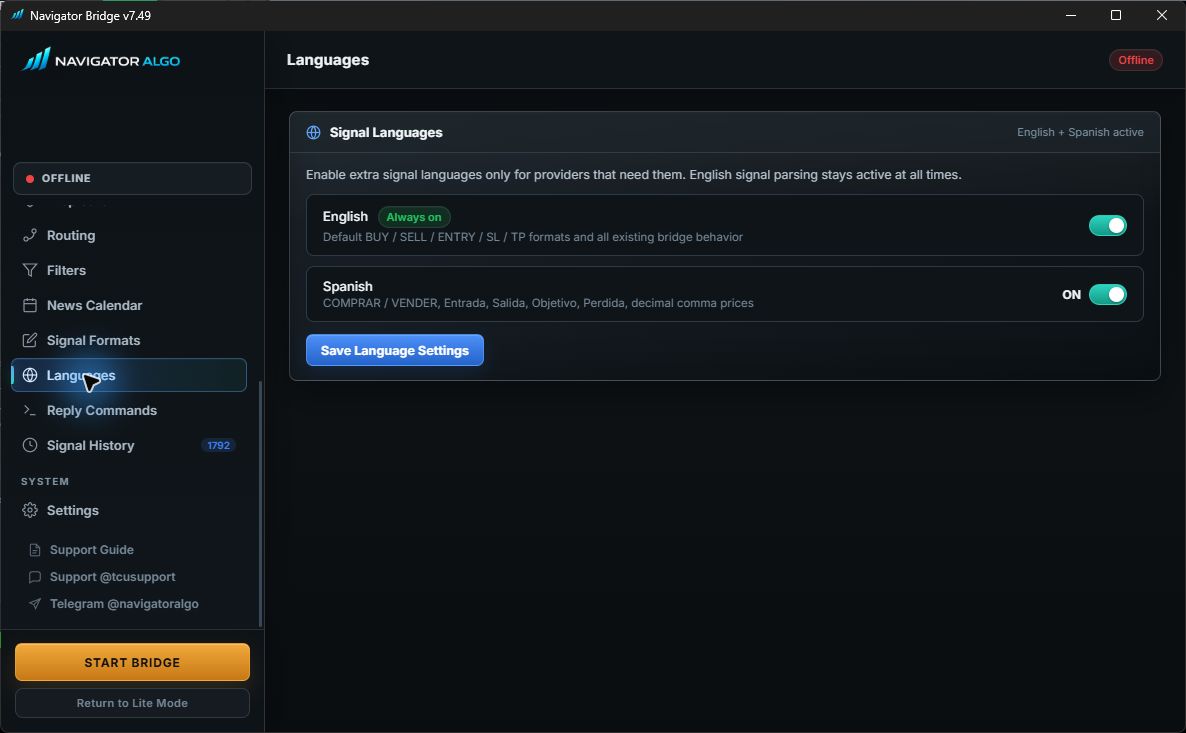
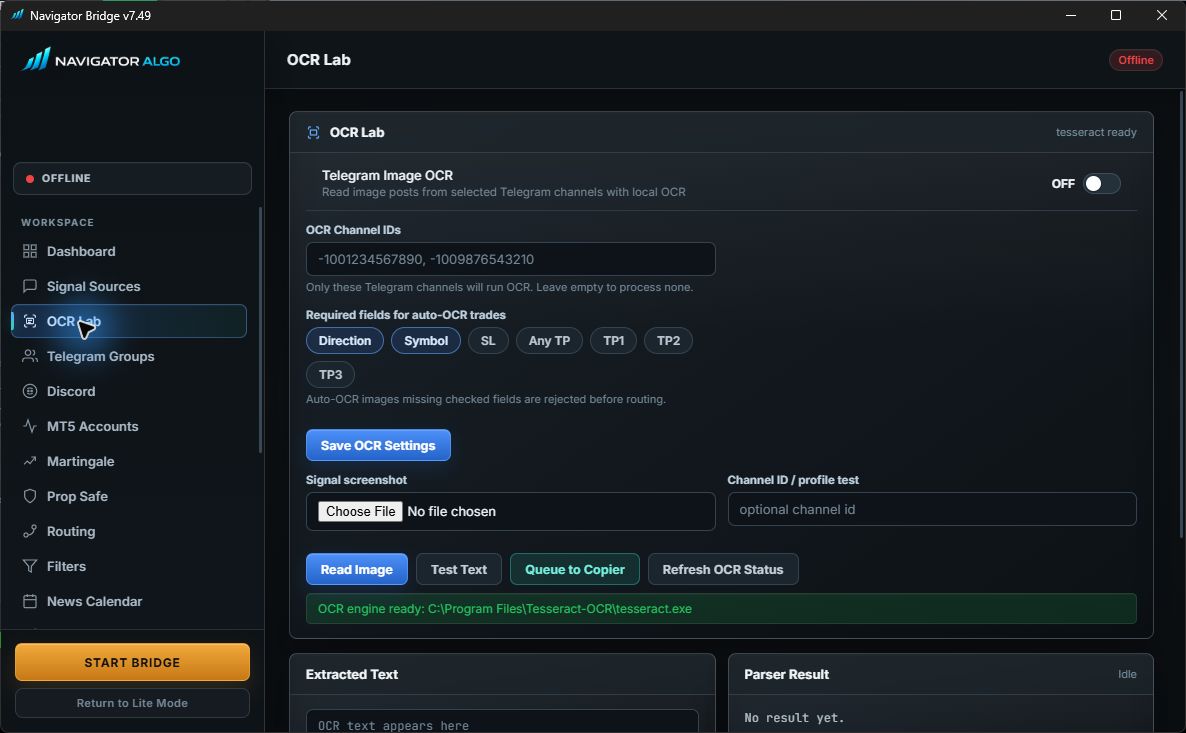
The Bridge is more than a Telegram login screen. Routing, filters, news, OCR, language aliases, provider profiles, reply commands, account safeguards, and audit history are independent controls. Configure only what your provider needs.
Signal Sources
Telegram MTProto is the usual method for private channels because it logs in as your Telegram account. Telegram Bot API only works where your bot can read messages. Do not enable both for the same group unless you intentionally want two ingestion paths and know how duplicate filtering will behave.
| Source | Best for | Needs | Common issue |
|---|---|---|---|
| Telegram MTProto | Private groups/channels and normal user-visible Telegram messages. | API ID, API Hash, phone number, Telegram code, optional 2FA password. | Groups do not fetch until login is complete and Bridge has permission to read the source. |
| Telegram Bot API | Groups where your bot is added and allowed to read messages. | Bot token and chat/group ID. | Bots cannot read many private channels unless the provider permits it. |
| Discord | Discord signal feeds or alert forwarding. | Configured Discord source/webhook flow. | Message permissions and channel selection must match the real signal channel. |
| File/API | Advanced integrations and local testing. | File watcher path or REST sender. | Great for controlled tests, but not the normal beginner path. |
Telegram Groups and Per-Account Routing
After fetching groups, select the source groups that contain signals. When multiple MT5 accounts are connected, assign each group to the correct account. If no account appears, confirm the EA is running, Bridge mode is on, and the port matches.
Routing Rules That Prevent Confusion
- If one group should feed one account, assign that group only to that MT5 account.
- If one group should feed multiple accounts, assign the same group to every intended account and confirm each account card shows it.
- If a source should pause for one account but stay active for another, remove that account from the group assignment instead of disabling the whole Telegram source.
- When a second MT5 account is added, wait for the account heartbeat before editing routing. The account must be visible in Bridge first.
- Do not route the same Telegram source through both MTProto and Bot API unless you are deliberately testing duplicate protection.
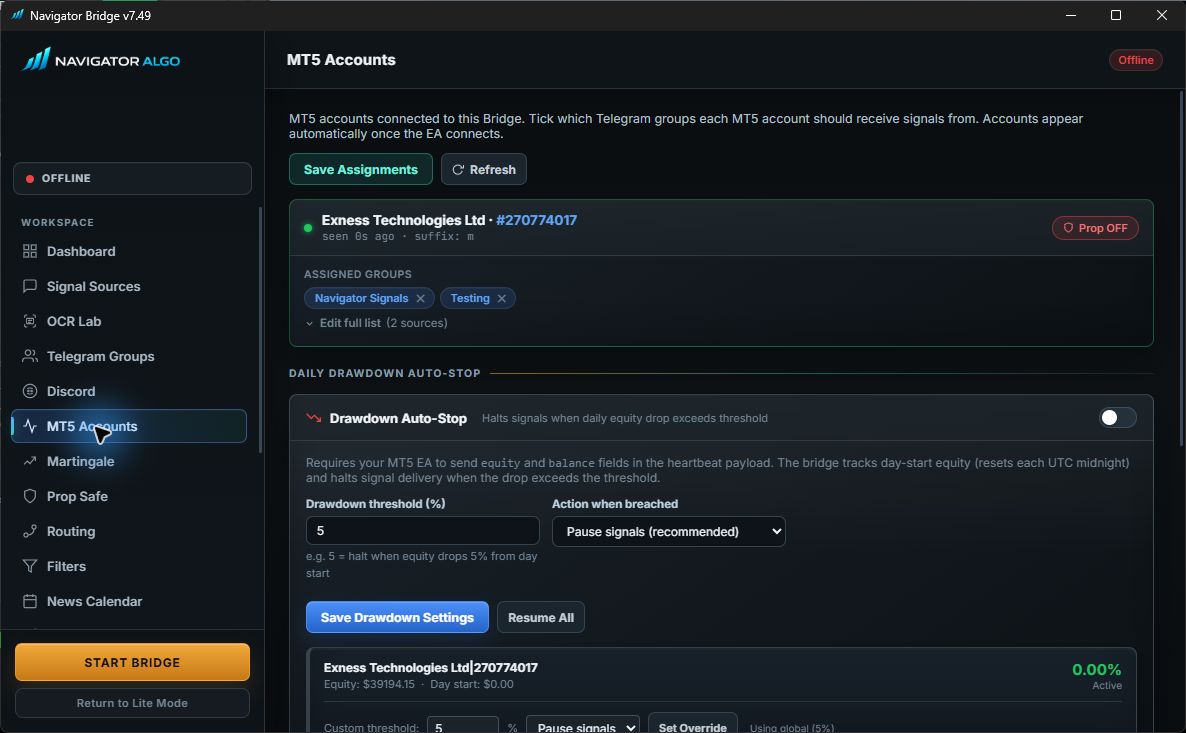
MT5 Accounts, Heartbeats, and Drawdown Stop
The Accounts page shows connected MT5 terminals, broker, account number, online state, detected suffix, and per-account protection settings. Bridge keeps recently seen accounts visible so routing does not disappear after a short idle period.
Bridge Prop Safe vs EA Prop Mode
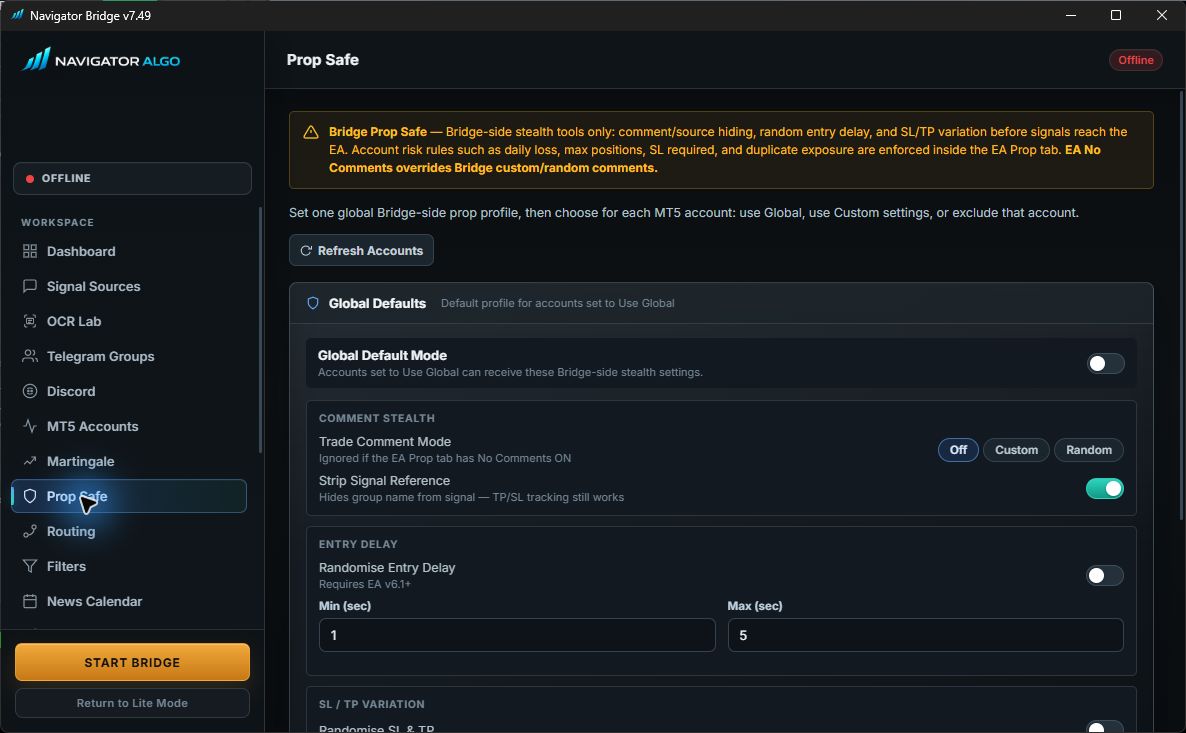
There are two protection layers. Bridge Prop Safe changes how Bridge sends a signal to each MT5 account, while EA Prop Mode decides whether the EA is allowed to execute after the signal arrives.
Bridge Prop Safe
Bridge-side routing controls: random entry delay, optional SL/TP variation, comment mode, and global/per-account application. Global settings apply when global auto-apply is on and account override is off.
EA Prop Mode
EA-side account safety controls: require SL, daily loss cap, max open positions, max trades per minute, spread filter, same-direction exposure block, and no-comments behavior.
Broker Suffix and Symbol Mapping
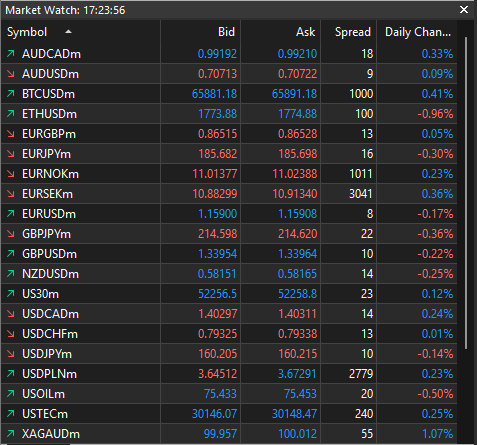
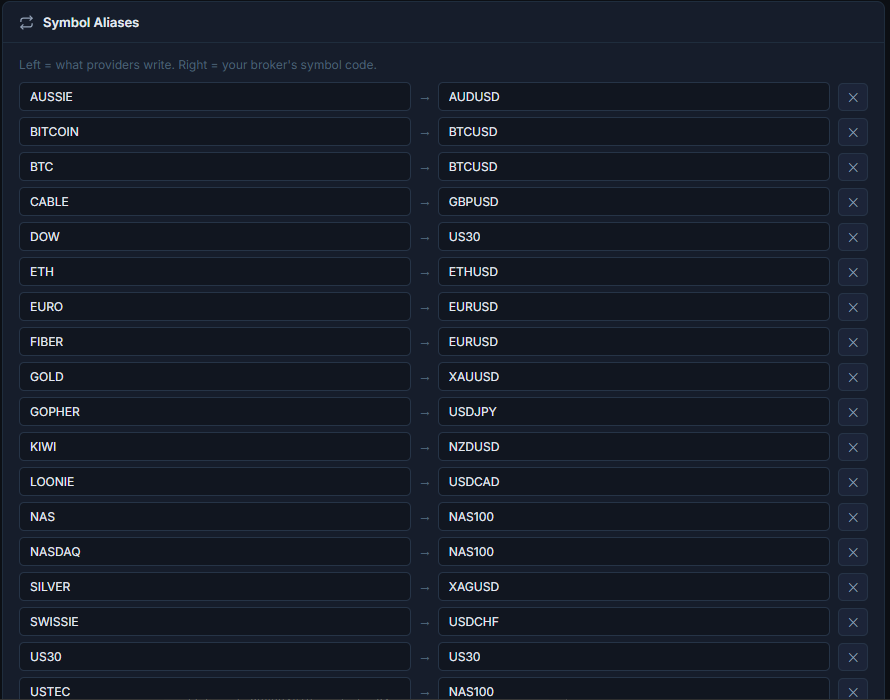
Different brokers name the same symbol differently: XAUUSD, XAUUSDm, XAUUSD+, EURUSD.r. Bridge detects suffixes from the EA's Market Watch list and applies the account's suffix automatically when routing.
When to Use Aliases
Use aliases when the provider uses a different base symbol, not just a suffix. Examples: GOLD -> XAUUSD, US30 -> DJ30, OIL -> USOIL. Use suffix settings when the broker adds text to the end of normal symbols.
Signal Formats and Format Lab
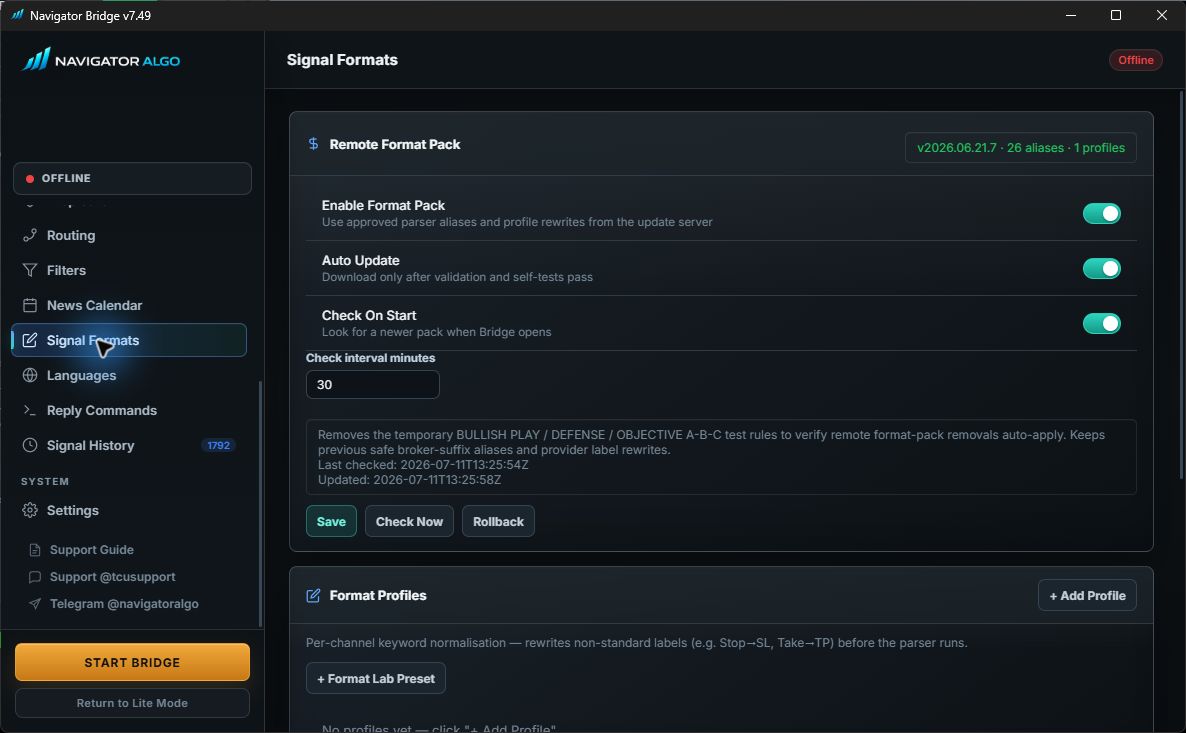
Bridge parses standard BUY/SELL, SL, TP, pending order, breakeven, close, and modification messages. For unusual providers, use Signal Formats and Format Lab Preset to rewrite only that provider's format before parsing.
| Signal type | Supported examples | Important note |
|---|---|---|
| Market open | BUY EURUSD, Sell Gold Now, BUY XAUUSD AT MARKET | Allowed even without SL/TP, but EA filters can still require SL or TP. |
| SL/TP signal | SL 2338, TP1 2360, Targets 2360 / 2372 / 2385 | Core parser handles many normal labels and separators. Signal execution consumes TP1-TP3. |
| Pending order | BUY LIMIT EURUSD 1.0800, SELL STOP XAUUSD 2320 | EA pending order settings must be enabled, and broker distance rules still apply. |
| Modification | Follow-up SL/TP messages after an opener signal. | Cooldown can allow SL/TP modification if the EA setting permits modification during cooldown. |
| Close / breakeven | close all, move sl entry, move sl to breakeven | Command replies must be enabled in the EA when you want text commands to manage positions. |
| Provider-specific noise | BUYY, SL_, Tp-1@, hashtag direction/symbol formats | Use Format Lab profiles so these rules only apply to the relevant source. |
Formats That Usually Work Without a Profile
Clean signals should include direction, symbol, optional entry, SL, and up to three TP targets. These examples are the easiest for Bridge and EA to read:
Market Order
BUY XAUUSD 2350
SL 2338
TP1 2360
TP2 2372
TP3 2385
Pending Order
SELL LIMIT EURUSD 1.0850
SL 1.0900
TP1 1.0790
TP2 1.0750
When You Need a Format Profile
Create a profile when the provider uses symbols, separators, emojis, labels, or spelling that the parser should not globally accept for every other channel.
Raw Provider Message
✅#XAUUSD_BUY 2350:00
Sl@2338
Tp-1@2360
Tp-2@2372
Tp-3@2385
What the Profile Should Produce
BUY XAUUSD 2350
SL 2338
TP1 2360
TP2 2372
TP3 2385
How to Add Your Own Signal Format
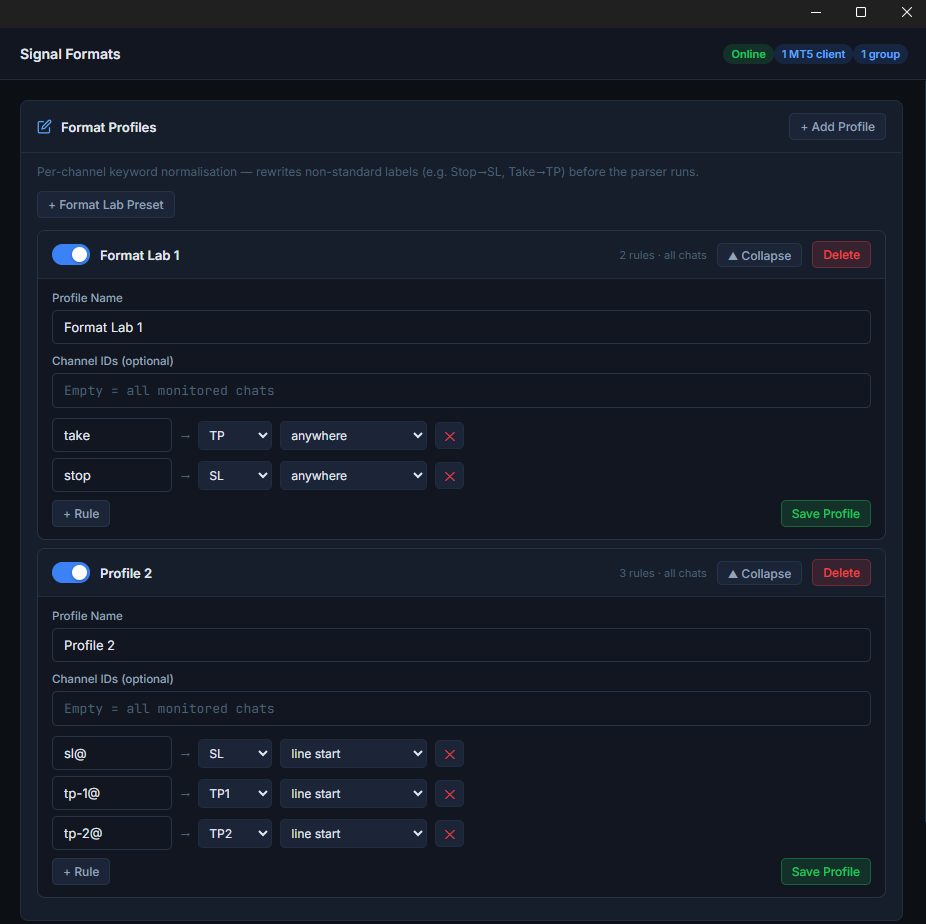
- Open Bridge and go to Signal Formats.
- Click + Format Lab Preset.
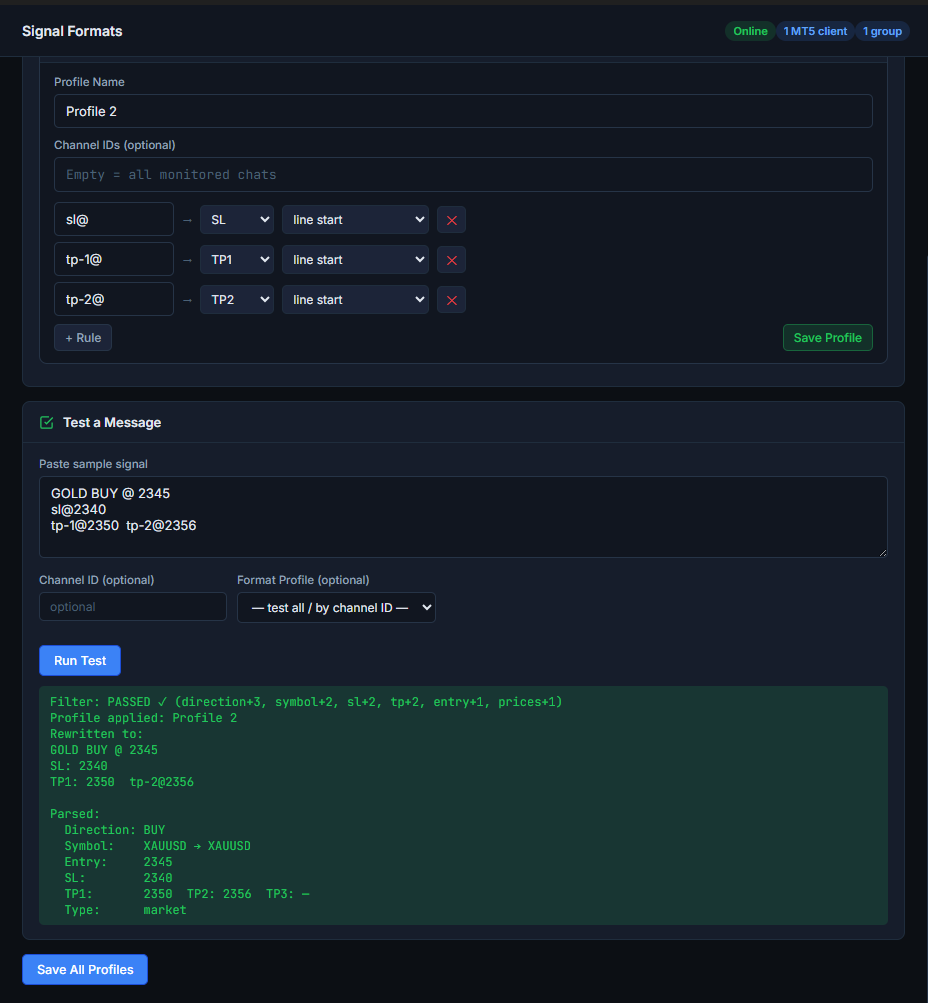
- Paste the exact raw signal text from Telegram into the test box. Do not retype it manually if you can copy it.
- Add rewrite rules for the parts that are unusual. For example, rewrite
BUYYtoBUY,SELLLtoSELL,Sl@toSL, andTp-1@toTP1. - If the provider writes symbols in a strange way, normalize the symbol text before parsing. Example:
#XAUUSD_BUYshould becomeXAUUSD BUY. - Run the test. Confirm Bridge detects the correct direction, symbol, SL, and TP1-TP3.
- Assign the profile to the source channel or account that uses this format. Avoid making it global unless every provider uses the same style.
- Save the profile, then send or wait for a new signal. Old messages already processed by duplicate filtering may not fire again.
Useful Rewrite Examples
Direction Cleanup
BUYY -> BUY
_BUY -> BUY
SELLL -> SELL
Sell Now -> SELL
SL and TP Labels
Sl@ -> SL
SL_ -> SL
Tp-1@ -> TP1
Take Profit -> TP
Symbol Cleanup
#XAUUSD_BUY -> XAUUSD BUY
GOLD BUY -> XAUUSD BUY
USOIL BUY 🌸 -> USOIL BUY
Repeated TP Lines
TP 2360
TP 2372
TP 2385

becomes:
TP1 2360
TP2 2372
TP3 2385
Sample Formats to Test
These are good samples to paste into the Signal Formats tester when building or checking a profile:
Gold Noise Format
XAUUSD BUYY 2350 2348
TP¹ 2360
TP² 2372
TP³ 2385
SL_2338
Hashtag Format
✅#XAUUSD_BUY 2350:00
Sl@2338
Tp-1@2360
Tp-2@2372
Oil Format
USOIL BUY 🌸
Entry 80.22
Take 86.36
Stop 76.12
Text Direction Format
Sell XAUUSD Now
Stop Loss 2362
Take Profit 2340
Take Profit 2325
Reply Commands and Provider-Update Safety
Management commands are powerful because they can close or modify real positions. The current Bridge requires proven reply context for targeted close, partial close, breakeven, SL/TP modification, and pending cancellation. Broad provider chatter is not promoted into a trade command.
| Message | Interpretation | Result |
|---|---|---|
TP1 hit, Target reached, Profit taken | Provider status update | Rejected as a fresh entry. |
CLOSE as a reply to the original signal | Targeted close command | Runs only when Close replies and the phrase are enabled. |
Take profits now GOLD | Protected custom close phrase | Only acts under its configured command category and reply-safety rules. |
XAUUSD LONG / SHORT | Contains both directions | Ignored as ambiguous. Send exactly LONG/BUY or SHORT/SELL. |
XAUUSD LONG | Single clear direction | Parses as BUY when all normal safety gates pass. |
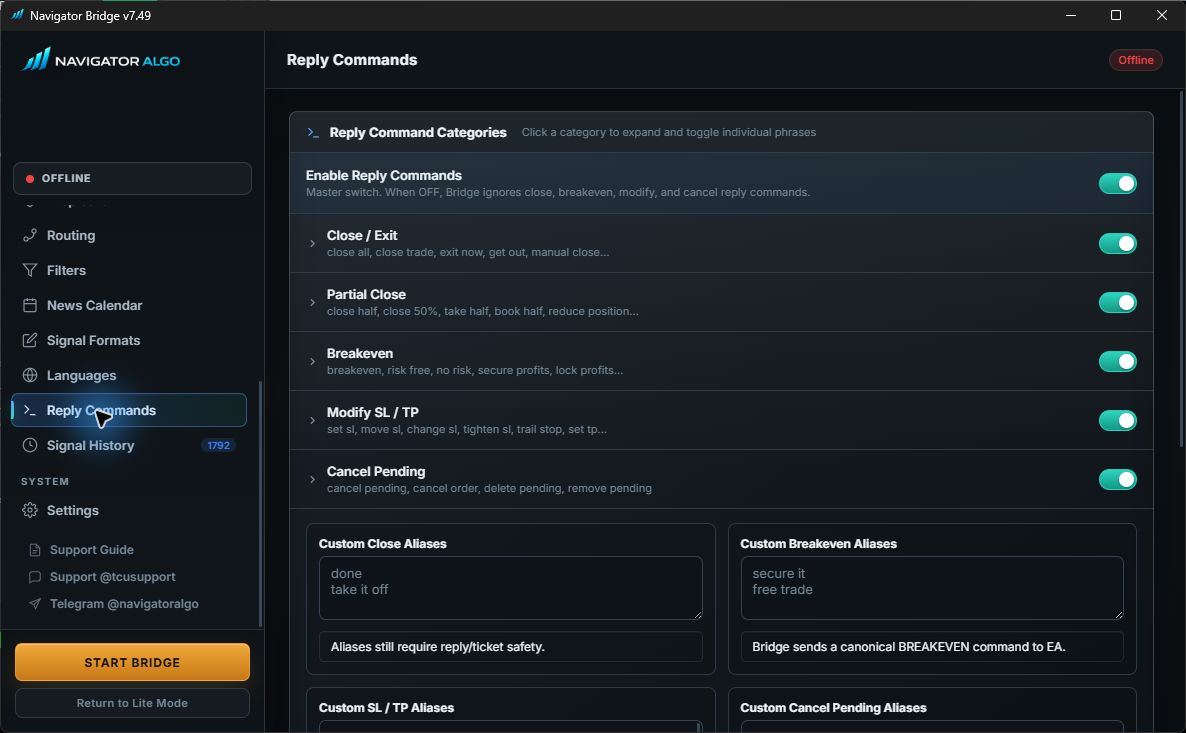
Duplicate Filter
Duplicate filtering blocks repeated messages so the same signal does not open twice when it is forwarded through multiple channels or edited by the provider. Turn it off only for controlled testing. Current Bridge builds apply duplicate-filter changes live without a full restart.
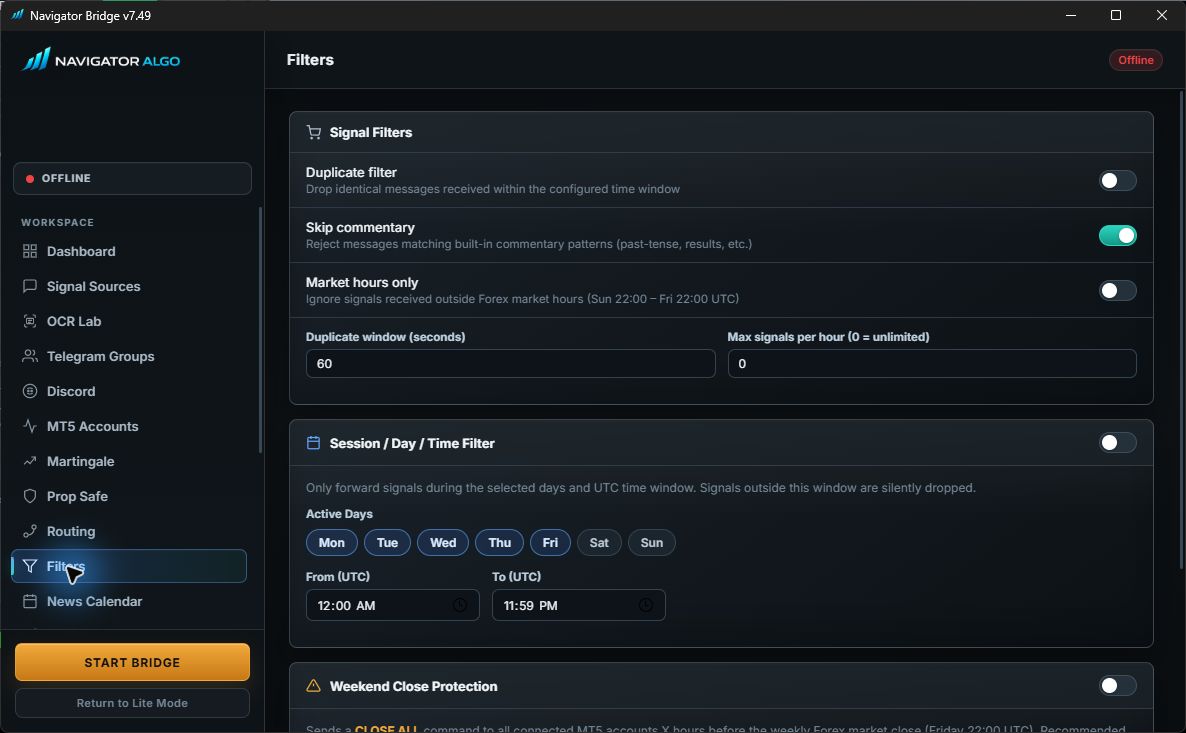
Signal History
Signal History is the first place to look when a trade does not open. It shows what Bridge received, how it parsed the signal, which symbol it routed, and whether it was filtered or queued.
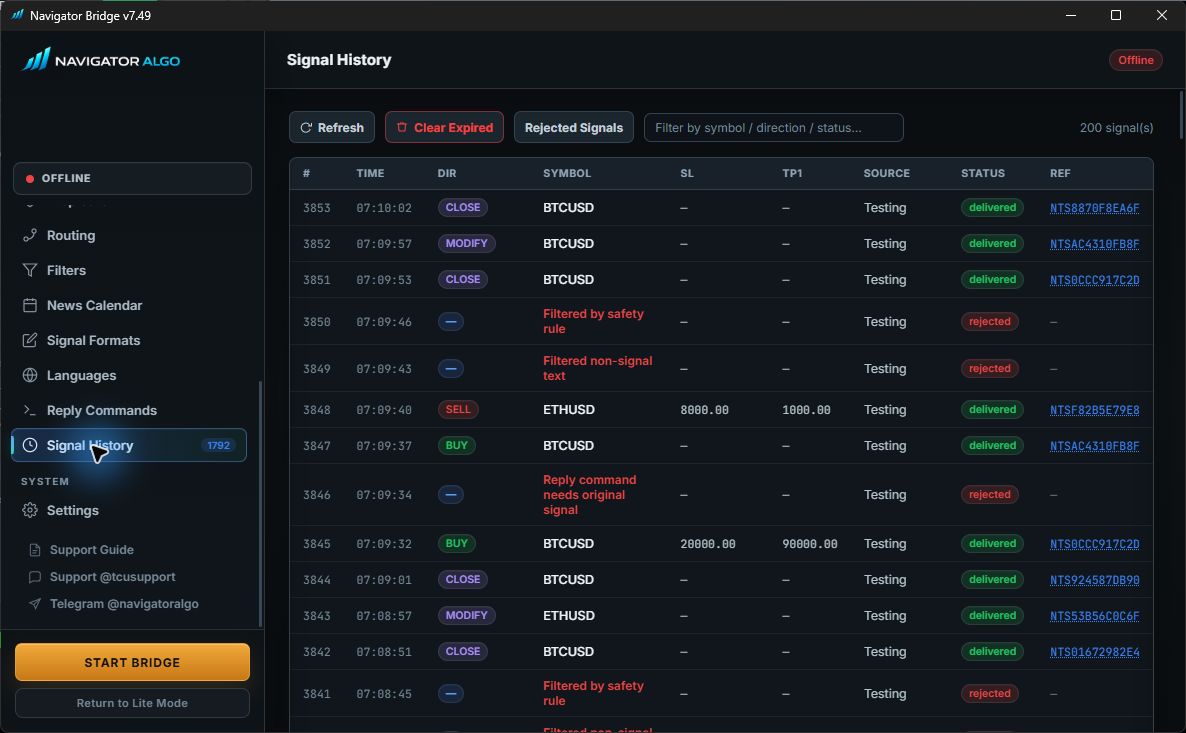
Updates, Data Folder, and Telegram Session Reset
Bridge checks for updates and stages them safely. When an update is ready, click restart from the Bridge UI and let the updater finish. Do not close the updater window early.
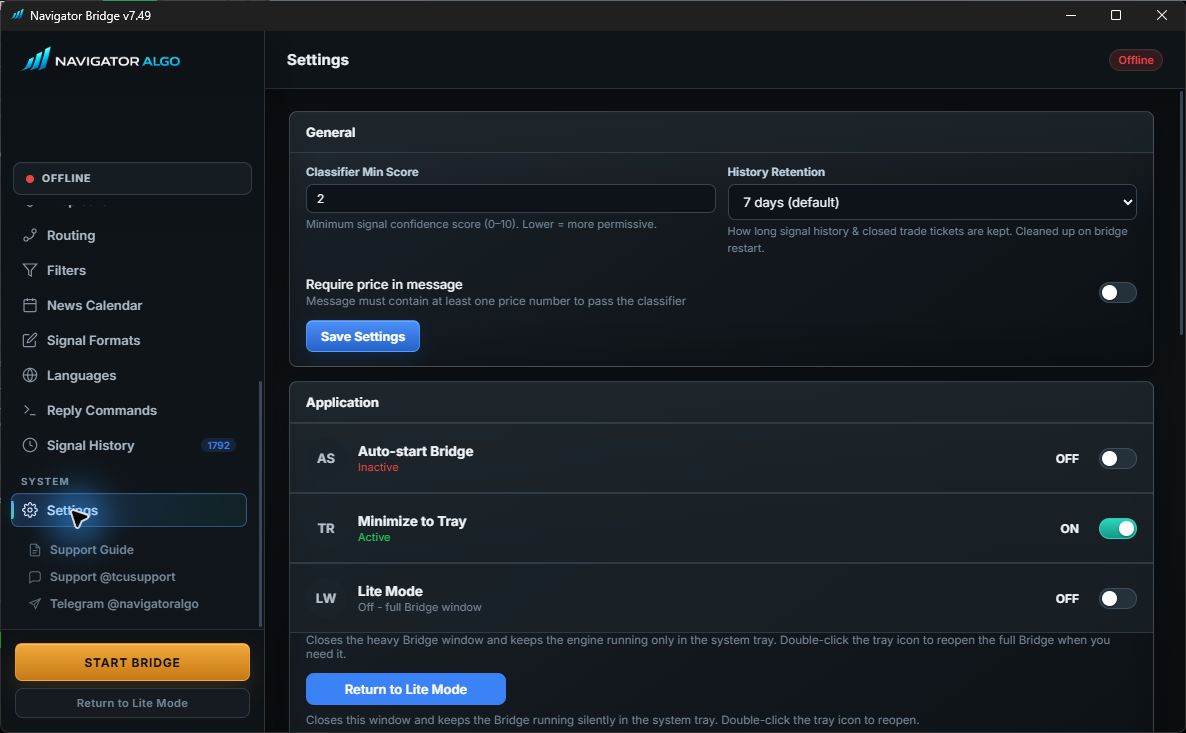
Current Bridge Safety Improvements
- Windows permission fallback: if
C:\nts_bridgeis not writable, Bridge can fall back to%APPDATA%\NavigatorBridge. - Logger hardening: log-file permission problems should not crash the app during startup.
- Format-pack updates: supported signal-format rules can update without rebuilding the whole Bridge app.
- Prop Safe global mode fix: global Prop Safe applies exactly when global auto-apply is on and account override is off.
- Config save stability: UI saves are safer on Windows when multiple settings are saved quickly.
- Symbol/parser hardening: hashtag formats, crypto aliases, broker suffixes, metal crosses, and noisy SL/TP labels are handled more reliably.
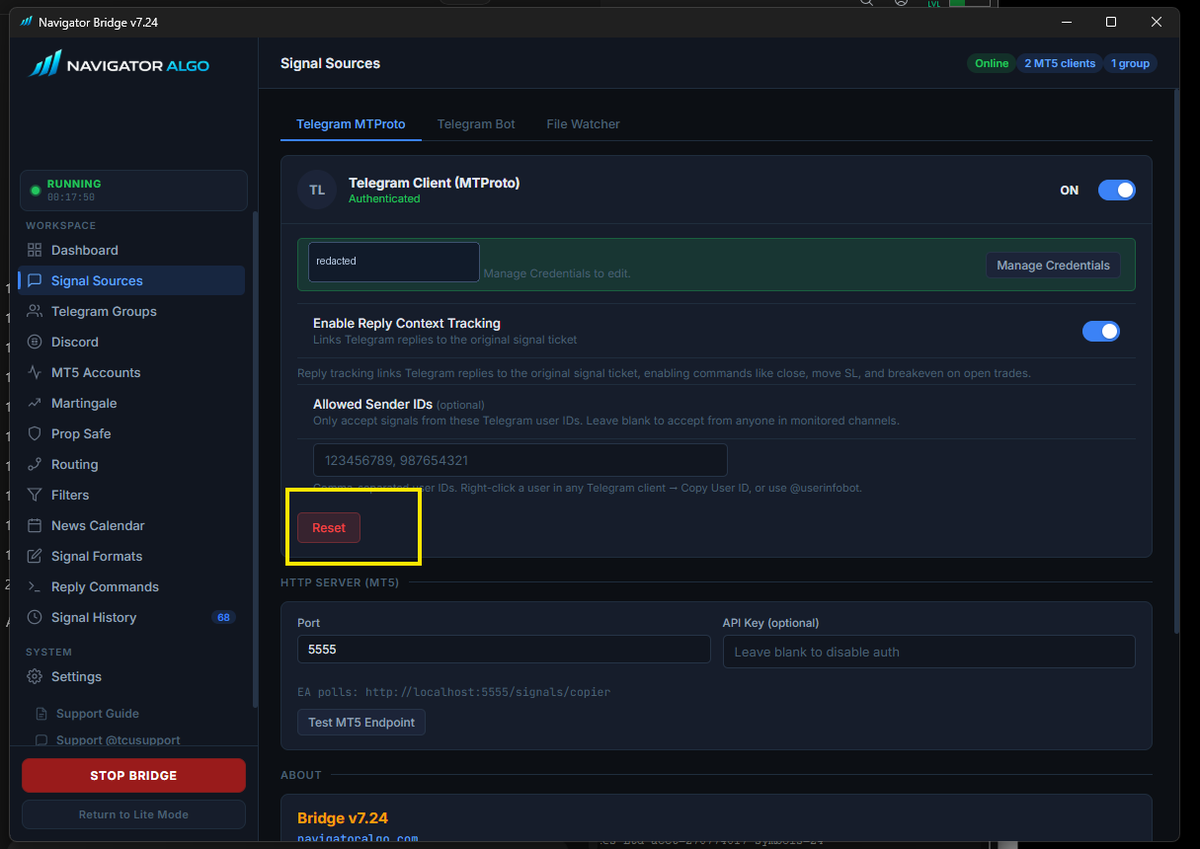
too many values to unpack, open Signal Sources -> Telegram MTProto, click Reset, then log in again. Current Bridge builds preserve sessions more carefully and only reset when you use the visible reset flow.
Where Logs Are Stored
Use the Bridge UI buttons such as Open Log Folder first. Advanced users may see Bridge data under one of these folders depending on Windows permissions:
C:\nts_bridge
%APPDATA%\NavigatorBridge
%TEMP%\NavigatorBridge\logs
Trade Did Not Open: Fast Diagnosis
Use this checklist in order. It narrows the issue faster than changing random settings.
Is Bridge Running?
The Bridge button should show running/stop state, and Signal History should receive new messages.
Is EA Online?
Bridge Accounts should show the MT5 account. If not, check EA Bridge mode, port 5555, and WebRequest.
Is EA Armed?
If the EA is DISARMED, it intentionally ignores live execution.
Was the Group Assigned?
Telegram group must be selected and routed to the target MT5 account.
Did Bridge Parse It?
Check Signal History. If symbol/direction/SL/TP are empty, add a Format Profile or alias.
Did a Filter Block It?
Check duplicate filter, cooldown, whitelist, blacklist, news pause, prop SL requirement, spread, and max open positions.
Did Broker Reject It?
Open MT5 Experts and Journal. Broker errors like 10014, 10016, 10021, and 10027 tell you exactly what failed.
Is Symbol Tradable?
Confirm Market Watch has the exact tradable broker symbol and suffix.
Bridge Does Not See the MT5 Account
If the account is not visible in Bridge, Telegram routing cannot target it yet. Fix connection first, then routing.
Check in MT5
- EA is attached to a chart and Algo Trading is green.
- EA Source tab has Bridge enabled.
- Bridge Port is
5555unless you changed both sides. - MT5 WebRequest includes
http://127.0.0.1. - EA panel is not frozen and Experts tab has no WebRequest block message.
Check in Bridge
- Bridge app is open and running.
- Only one intended Bridge port is in use.
- Accounts page is refreshed after the EA heartbeat.
- Windows firewall or antivirus is not blocking local loopback.
- If data-folder permission errors appeared before, update to the latest Bridge build.
Telegram Problems
Groups Do Not Fetch
Confirm API ID, API Hash, phone number, and Telegram login. Start Bridge once after login, then fetch again. If still broken, click Reset and log in again.
Signals Not Arriving
Confirm the selected source group is the one receiving the actual signal. Some channels forward from hidden linked groups; fetch and select the group that receives the visible message.
Code or 2FA Fails
Use the code from Telegram itself, not SMS unless Telegram sends SMS. If 2FA is enabled, enter the Telegram cloud password.
Session Schema Error
Click Reset in Telegram MTProto, then authenticate again. This clears old Telethon session files from previous Bridge versions.
Bridge Update or Permission Problems
If Bridge fails at startup, cannot save settings, or shows log/session permission problems, treat it as a Windows data-folder issue before changing signal settings.
Symptoms
- Bridge crashes before the dashboard opens.
- Logs mention permission denied under
C:\nts_bridge. - Settings do not save, Telegram login disappears, or update state resets.
- Updater downloaded but Bridge did not relaunch cleanly.
Fix Path
- Install or update to the current Bridge release.
- Run Bridge normally and let it choose a writable data folder.
- Use Bridge Settings to open logs; do not manually move session files unless you are troubleshooting a specific session or permission issue.
- During updates, wait for the updater/restart flow to finish before closing windows.
Symbol, Suffix, and Error 10021
If Signal History shows the signal but MT5 rejects it, symbol mapping is a common cause. Open Market Watch and identify the exact tradable symbol. If the provider says GOLD but your broker trades XAUUSD+, use alias GOLD -> XAUUSD and suffix +.
- Open MT5 Market Watch with Ctrl+M.
- Right-click and choose Symbols or press Ctrl+U.
- Find the exact tradable symbol, including suffix.
- Check Bridge Accounts for auto-detected suffix.
- Add aliases only when the base symbol name differs.
Common MT5 Error Codes
These errors are normally broker/platform rejections returned to the EA. They are not always Bridge bugs.
| Error | Meaning | Fix |
|---|---|---|
| 10014 | Invalid volume | Lot size is too small, too large, or not on the broker's lot step. Check fixed lot, per-symbol lot, risk percent, min lot, max lot, and lot step. |
| 10015 | Invalid price | Usually pending order price is too close, stale, or already crossed. Wait for a fresh signal or disable pending handling for that provider. |
| 10016 | Invalid stops | SL/TP is too close to entry/current price. Increase stop distance or check broker StopLevel. |
| 10019 | Not enough money | Free margin is too low. Reduce lot size or risk percent. |
| 10021 | Trading disabled / wrong instrument | Use the exact tradable symbol/suffix from Market Watch. The visible naked symbol may be read-only. |
| 10027 | AutoTrading disabled | Enable MT5 Algo Trading, allow live trading in EA common settings, and arm the EA. |
| 10031 | No connection | MT5 lost broker connection. Reconnect terminal/VPS and check broker server status. |
| 10033 | Market closed | The symbol is outside trading hours, daily break, weekend, or broker maintenance. |
Signal Format Problems
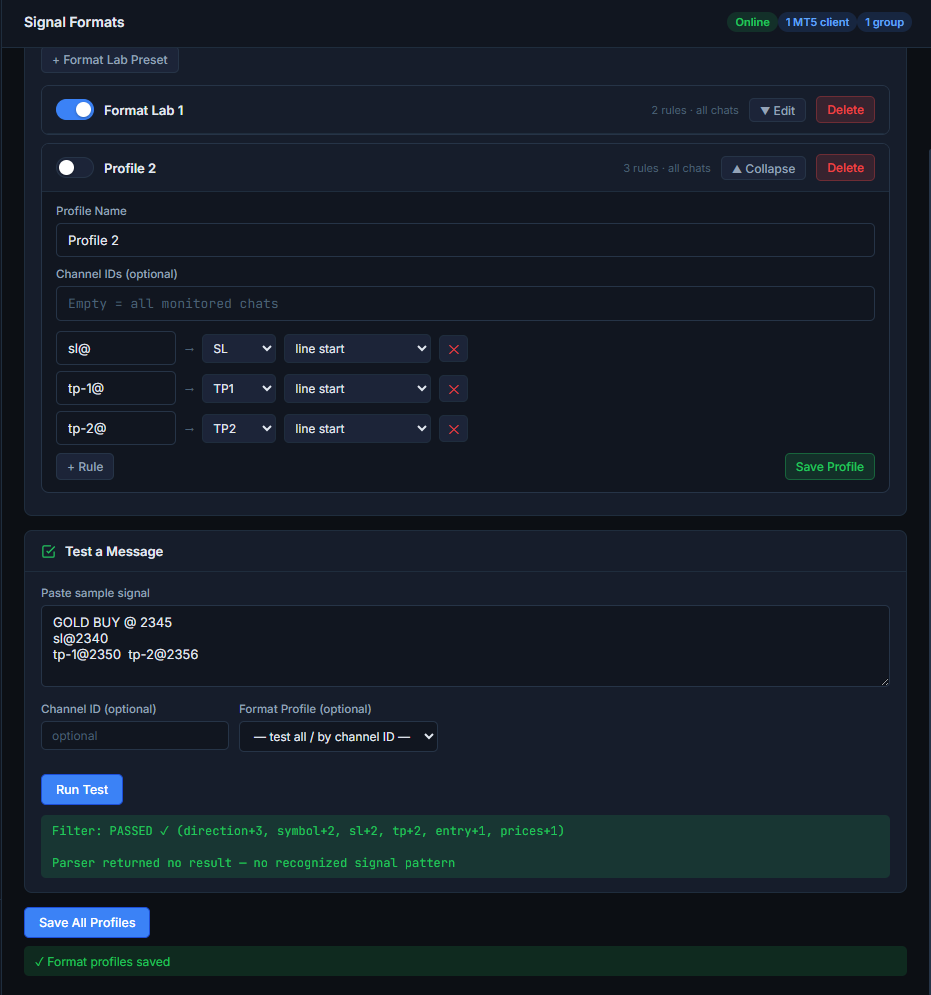
If Bridge receives a message but cannot identify direction, symbol, SL, or TP, the provider format may need a profile. Build a Format Lab preset for that channel instead of forcing global parser behavior.
Symptoms
- Signal History has blank direction or symbol.
- TP lines are not detected.
- Provider writes
BUYY,SL_,Tp-1@, or hashtag symbols.
Fix
- Create a Format Lab preset.
- Test the exact raw signal text.
- Assign the profile to the correct channel.
- Save profile and send a new signal.
When Filters Block a Good Signal
Filters are safety systems. If you think a good signal was skipped, check these items before assuming the EA failed:
- Duplicate filter: blocks repeated same signal text within the duplicate window.
- Cooldown: blocks repeated same symbol/direction within the cooldown period.
- Prop mode: may reject missing SL, too many positions, or daily drawdown breach.
- Whitelist/blacklist: can block symbols not listed or explicitly excluded.
- News pause: blocks new entries around selected high/medium impact news.
- Spread/slippage: blocks entries when broker conditions are outside your limits.
MT5-to-MT5 Copier: Fast Diagnosis
| What you see | Meaning | What to do |
|---|---|---|
| Master shows Blocked By | Another active TCU account owns the same copier file. | Keep the intended owner running, or stop it and deliberately click USE AS MAIN on the replacement. |
| Slave does not copy | Wrong role/file, terminal Algo Trading off, Master unavailable, or symbol cannot map. | Confirm both use TCU_TradeCopier.csv, roles are correct, Algo Trading is on, and the broker symbol exists. |
| Old trades copied after startup | COPY EXISTING was selected for a fresh source. | Use NEW TRADES ONLY when you want the current Master book registered without copying. |
| Trade duplicated after restart | Usually wrong EA build, changed account/magic/file identity, or deleted state. | Confirm v7.40 on every terminal and do not manually delete copier state files while trades are linked. |
| Copied trade closed unexpectedly | Auto-close followed a Master close, or the Slave was linked to a different selected main Master than expected. | Check the selected owner before trading and inspect the copier state/log before re-arming. |
| No visible copier comment | Comment mode is OFF by design. | Tracking still works from persistent state; this is not a missing-link warning. |
Contact Support
Use the guide checks first when possible, then contact support with the screenshots and details below. For the fastest help, include the raw signal text, Bridge version, broker symbol, and MT5 Experts error if there is one.
Message direct support for setup, Bridge, EA, and account-specific routing issues.
TCU Support @tcusupportUse this for Trade Copier Ultimate support cases and troubleshooting follow-ups.
Telegram Channel @navigatoralgoFollow the official Navigator Algo channel for product updates and announcements.
WhatsApp +94 741 127 003Contact support on WhatsApp if Telegram is not convenient.
Before Contacting Support
Most issues are solved faster when support can see the full path: Telegram message -> Bridge parse -> MT5 account route -> EA execution -> broker response.
Send These Screenshots
- Bridge Dashboard showing running/offline state.
- Bridge Signal History for the failed signal.
- Bridge MT5 Accounts page showing the target account.
- EA Home tab showing ARMED/DISARMED and Bridge status.
- MT5 Experts tab lines around the signal time.
Send These Details
- Bridge version shown in the app.
- Broker name and account type.
- Exact raw signal text copied from Telegram.
- Expected symbol and actual broker symbol in Market Watch.
- Whether this is demo, live, or prop challenge.
Support Message Template
Copy this structure when opening a support case. It gives support the full path from source message to broker response.
Bridge version:
EA version:
Broker + account type:
MT5 account number:
Signal source group/channel:
Raw signal text:
Expected trade:
What happened instead:
MT5 error code, if any:
Screenshots attached: Dashboard, Signal History, MT5 Accounts, EA Home, MT5 Experts
Known Limits and Expectations
- Signal TP splitting supports up to TP1, TP2, and TP3. Extra TP lines may be normalized for readability but should not be expected to create more signal TP legs.
- Provider-specific strange formats should be handled with Format Profiles, not global parser changes.
- Telegram API ID and API Hash come from your own Telegram account. Never share Telegram login codes or passwords.
- Broker rejection errors must be checked in MT5 Experts/Journal because Bridge can deliver a valid signal that the broker later refuses.
- For prop accounts, drawdown and SL-required settings may intentionally block signals that look valid.